

Knowing how to leave a Google review takes about a minute once you know where the button is. You need a Google account and the business’s page in Google Maps. Below are the steps for Android, iPhone and a computer. The Android screenshots are from my own phone, taken on October 22, 2026, at a local gym I use.
If a business sent you here with a review link, tap that link instead. It opens the review box for the right business directly, so you can skip to choosing your stars.
What you need first
- A Google account. It doesn’t have to be Gmail. More on that below.
- A real experience with the business. Google removes reviews that aren’t based on a genuine visit or purchase.
- About a minute. A few honest sentences are enough.
How to leave a Google review on Android
I used the Google Maps app on a Samsung phone. The labels may move a little between app versions, but the steps are the same.
Find the business in Google Maps
Open the Google Maps app and search for the business by name. Tap it so its details slide up from the bottom of the screen.
Tap Add review
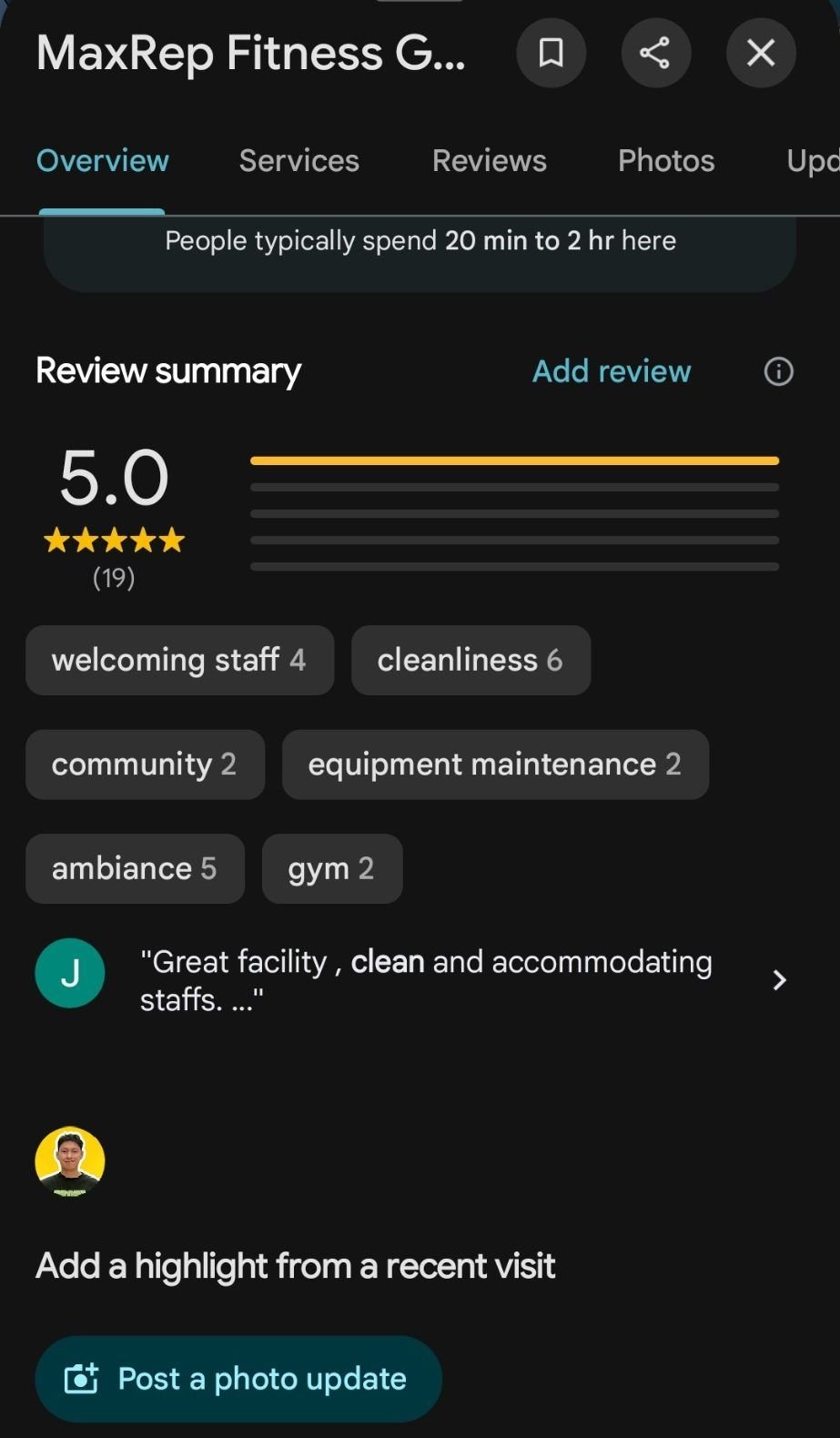
Swipe the details up to the Review summary. Next to it is an Add review link. You can also open the Reviews tab.
Choose your stars and write
Tap from 1 to 5 stars, then describe your visit in the box underneath.
Add photos if you like, then tap Post
Tap Add photos and videos to attach pictures, then tap Post.
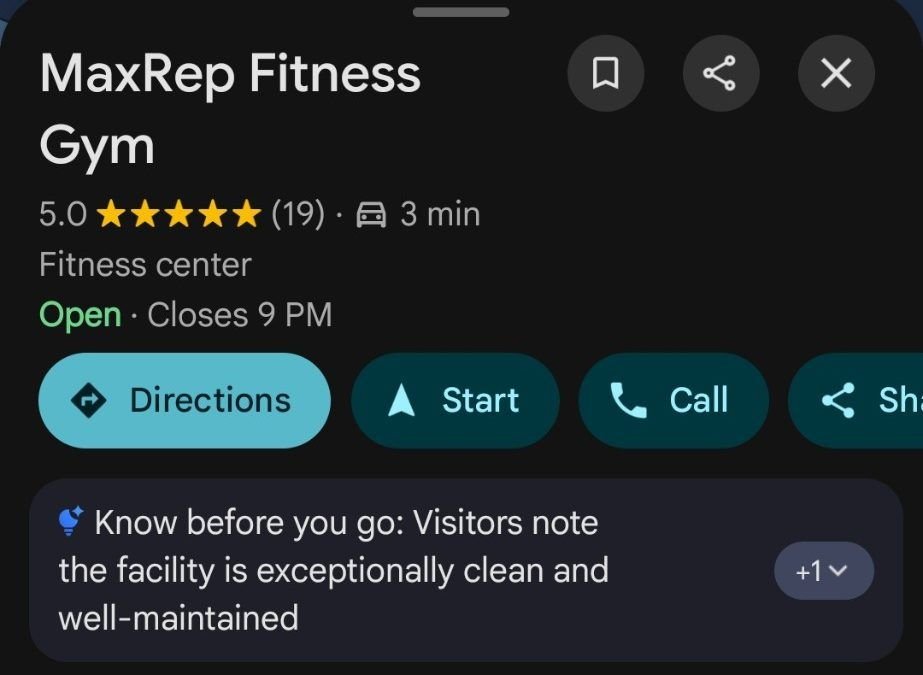
On the gym’s page, the Add review link sat right next to the Review summary on the Overview tab, so I didn’t need to open the Reviews tab at all.
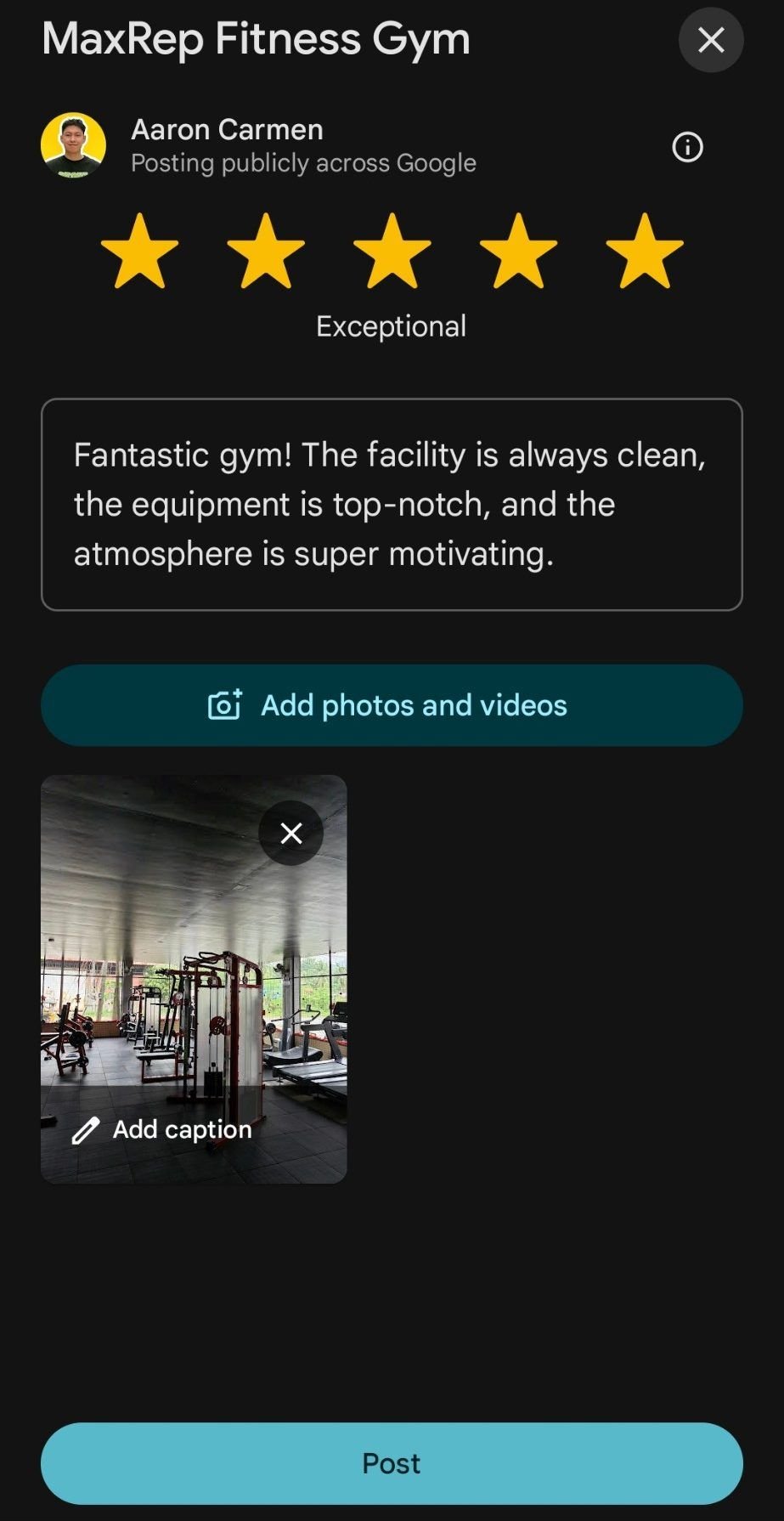
The review form shows your name and the words Posting publicly across Google at the top. When I tapped five stars, the word Exceptional appeared under them. The text box asks you to “Tell others about your experience”.
You can add a caption to each photo before posting. Nothing is public until you tap Post, so you can close the form with the X if you change your mind.
How to leave a Google review on iPhone
I don’t have an iPhone, so I haven’t tested these myself. They’re Google’s own steps for the Google Maps app on iPhone and iPad:
- Open the Google Maps app and sign in to your Google account.
- Search for the business, or tap it on the map.
- At the bottom, tap the business’s name or address.
- At the top, tap Reviews.
- Tap the five empty stars, choose your rating and write your review.
- Tap Post.
Reviews in Apple Maps are separate from Google’s. To leave a Google review, use the Google Maps app or Google Maps in Safari.
How to leave a Google review on a computer
- Go to google.com/maps and sign in.
- Search for the business and click it.
- In the panel on the left, scroll to the Review summary and click Write a review.
- Click the stars, write your review, add photos if you want, then click Post.
When I clicked Write a review without being signed in, Google tried to open its sign-in window instead of the review form. So if nothing seems to happen, check whether your browser blocked a pop-up, and sign in first.
No Gmail? You can still leave a review
You need a Google account, but not a Gmail address. When you create a Google account, choose Use your existing email and sign up with the address you already have, such as Outlook or Yahoo. Then sign in with it and follow the steps above.
What other people will see
Google reviews are public. Google’s help says you can’t post an anonymous review. People who read your review can see:
- The name on your Google profile.
- The review itself, your star rating and any photos.
- Other reviews and photos you’ve added to Google Maps.
If you’d rather not show your full name, change the name on your Google profile before you post.
Why your review might not show up
Google checks reviews and removes ones that break its content policy. Google says it doesn’t put back reviews that were removed for a policy reason. The common problems are:
- No real experience. Reviews must come from a genuine visit or purchase.
- A conflict of interest. That includes reviewing a business you work for or used to work for, a relative’s business, or a competitor.
- Incentives. A review written in exchange for a discount, freebie or payment isn’t allowed, even if the business offered it.
- Ads and contact details. Links, phone numbers and promotions don’t belong in a review.
- Personal information. Don’t share other people’s private details.
- Repeats. The same text posted more than once, or from several accounts, gets removed.
Some people in Google’s help forum report reviews sitting as “pending” for days before appearing. Google’s help pages don’t give a time frame for that, so if your review is honest and within the rules, give it a few days. Don’t post the same review again, because repeated text counts against you.
Writing a review that actually helps
Good reviews help other customers decide, and they help the business improve. A few things make yours more useful:
- Say what you bought or did. “Monthly membership” or “brake repair” is more useful than “great place”.
- Mention what stood out. Staff, cleanliness, price, waiting time.
- Add a photo if it shows something useful, like the space or the finished work.
- Keep it fair. If something went wrong, say what happened, without insults.
You can edit or delete your review later from your Google Maps profile. Google shows the date of your last edit as the review’s date.
For business owners
Want more customers to leave reviews? Send them a direct link so they land straight on your review box. My guide on creating a Google review link and QR code shows how to get one, and how to get more Google reviews covers when and how to ask. If you’re dealing with reviews that break the rules, see removing fake Google reviews. For help getting your business found and reviewed in Google Maps, see my local SEO service.
