Your Google review link comes straight from your Google Business Profile. Open the profile on a computer, select Read reviews, then Get more reviews, and Google hands you a short link and a QR code. You don’t need a generator tool, a Place ID or a paid app.
Below I’ll show you the exact steps, what a real review link and QR code look like (from a client of mine, with their permission), how to get a QR code that prints sharp, and the review rules that get businesses in trouble. There’s also a free printable review card at the end.
What a Google review link looks like
Here’s the real one from Otter Landscapes, a landscaping company in Tualatin, Oregon that I work with. This is exactly what Google gave us when we clicked Copy:
https://g.page/r/CWewZF8ycDktEBM/reviewThe format is always the same: g.page/r/, then a code unique to the business, then /review. Open it and Google shows that business with the review box ready to go. If the customer isn’t signed in, Google asks them to sign in first.
The QR code from the same box points to the same link with three tracking tags added to the end:
https://g.page/r/CWewZF8ycDktEBM/review?utm_source=gbp&utm_medium=reviews&utm_campaign=qrThose utm_ tags are analytics labels, normally used to track visits to your own website. This link lands on Google, not on your site, so they won’t show up in your reports. Both versions open the same review box.
How to create a Google review link
These are Google’s own steps. Use a computer, because that’s the only place Google offers the QR code too.
Sign in to the right Google account
Use the Google account that owns or manages your Business Profile. If you use more than one account, check the profile picture in the top corner first.
Open your Business Profile
Go to business.google.com and open your profile, or search your business name on Google while signed in.
Select Read reviews, then Get more reviews
A box opens with your review link, a QR code and share buttons.
Copy the link
Click Copy. Paste it somewhere safe, like a note or your email signature draft, so you have it on hand.
Test it in a private window
Open a private or incognito window, paste the link and check that it opens your business with the review box. Then test it on your phone too.
On your phone
You can get the link on a phone, but not the QR code. When I checked in October 2026, the button showed up in a Google search in mobile Chrome but not in the Google Maps app:
- Open Chrome on your phone, signed in to the account that manages the profile.
- Search your business name.
- In the owner panel at the top, tap Ask for reviews and copy the link.
For the QR code, you still need a computer.
How to get your Google review QR code
The QR code sits in the same Get more reviews box. To save it, right-click the code and choose Save image as. Google’s help page is clear that this only works in a computer browser: “reviews QR codes can only be generated on a computer browser, not on mobile devices.”
Here’s the one Google made for Otter Landscapes:
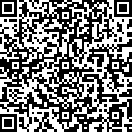
It scans fine on a screen. The catch is size. The image Google gave us is just 132 by 132 pixels, which is fine for an email or a website but goes blurry when you blow it up for a counter sign or a printed card.
If you need it bigger, make a new code from the same link:
- Copy your review link (step 4 above).
- Paste it into a QR code generator and download it as SVG, or the largest PNG it offers. SVG stays sharp at any size.
- Pick a static QR code. Some generators sell editable or trackable codes that point to their own short link first. If that service shuts down or your trial ends, every printed code stops working.
- Print one copy at the final size and scan it with an iPhone and an Android phone before you print the batch.
No access to the profile? Use a Place ID link
If you’re helping a business that hasn’t given you access yet, you can still build a working link from its Place ID:
- Find the business in Google’s Place ID Finder and copy the ID.
- Add it to the end of this address:
https://search.google.com/local/writereview?placeid=
I tested this format in October 2026 and it still opens the review form after sign-in. But I only use it as a stopgap. Google doesn’t document this address anywhere, and Google’s own developer docs say place IDs “may change over time.” The link from the profile is the one I’d print on anything.
Where to put your review link and QR code
Google’s own suggestions are good ones: on receipts, in thank-you emails, at the end of a chat, and printed in your store. A few more places that fit most local businesses:
- Invoices and payment confirmations. The job is done and the customer is already looking at your name.
- Follow-up texts. One short message after the job, with the link. No chasing.
- Your email signature. It sits there quietly on every reply.
- Leave-behind cards. For trades and home services, a small card left after the job does the work of a counter sign.
Free printable Google review card
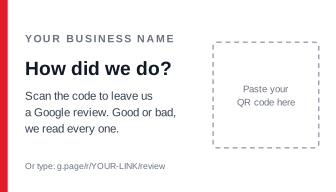
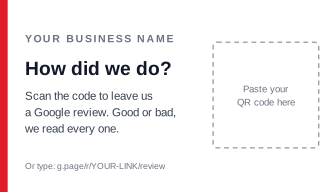
Here’s a simple review request card I made for this guide. It’s US business card size (3.5 by 2 inches), and you can edit it in Canva, Illustrator, Inkscape or any editor that opens SVG files. Change the business name, then drop your QR code into the dashed box.
Download the review card template (SVG)
Notice what the card doesn’t say. It doesn’t ask for five stars, and it doesn’t offer anything in return. That’s deliberate, and the next section explains why.
If you’d rather send the link than hand out a card, here are two messages you can copy:
Review request email
Subject: How did we do?
Hi {first name},
Thanks for choosing {business name}. If you have a minute, we’d love to hear how it went. Your review helps other people in {town} find us.
{your review link}
Thanks, {your name}
Review request text message
Hi {first name}, thanks for choosing {business name} today. If you have a minute, we’d appreciate a Google review: {your review link}
The review rules that get reviews removed
Asking for reviews is allowed. Google says businesses can ask for reviews that reflect a real experience, as long as they don’t offer incentives or try to influence the rating or what people write. Here’s what its policy rules out:
- Incentives. No payment, discounts, free goods or services in exchange for a review, or for changing or removing a negative one.
- Asking only happy customers. Google doesn’t allow businesses to discourage negative reviews or “selectively solicit positive reviews.” Send the same request to everyone.
- Pressure on the premises. A QR code on the counter is fine, and Google suggests it. Standing over a customer until they post a review is not.
- Scripting the review. Don’t ask customers to mention particular words or services, or to name a staff member.
- Staff quotas. Don’t set staff a target number of reviews to collect.
Why your Google review link isn’t working
- The customer isn’t signed in. Google requires a Google Account to leave a review. It doesn’t have to be Gmail; a Google Account can use any email address.
- There’s no Get more reviews button. Reviews are only available in certain countries, regions and business categories, so check that first. Also check that you’re signed in to the account that manages the profile.
- Reviews vanish after they’re posted. Google’s spam filters remove reviews they flag as suspicious, and some genuine ones get caught too. Google says some legitimate reviews may be removed by mistake, and there’s often little you can do about it.
- The QR code won’t scan when printed. It’s usually too small or too blurry. Make a fresh SVG code from the link and test it at the final size.
A review link is the easy part. The steady work is asking every customer, replying to reviews and keeping your profile accurate. That’s a big part of my local SEO service. If you want help setting it up, tell me about your business.