

Product ID in WooCommerce questions usually come up when a plugin, a shortcode or a developer asks for “the product ID” and you can’t see one anywhere. I set up a small test store on WooCommerce 11.2.1 with simple products and a product with sizes, and found the ID in each place it shows.
1. Hover over the product in the Products list
The quickest way. Go to Products → All Products and hover over the product’s name. The first item in the row of links underneath is the ID.
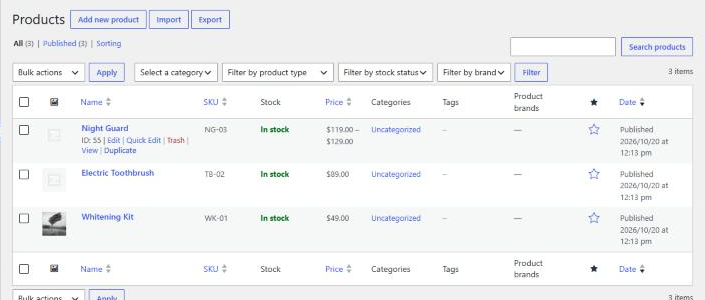
On my test store, hovering over the Night Guard showed ID: 55. The SKU column right beside it showed NG-03, which is a different thing.
Product ID vs SKU
- The product ID is a number WordPress assigns automatically when the product is created. You can’t change it, and plugins and shortcodes use it.
- The SKU is a code you choose, for stock, accounting or your supplier. It’s optional.
If a plugin asks for a product ID and you enter the SKU, it won’t find the product. You set or change the SKU yourself in the product’s Product data box, on the Inventory tab. Variations have their own SKU field too, inside each variation, so a size or color can have its own code for stock and accounting.
2. Open the product, for the ID and variation IDs
Click into the product. Its ID is in the browser’s address bar, after post=: on my test store, post.php?post=55&action=edit.
Products with options, such as sizes or colors, have a separate ID for each option. Scroll to Product data, choose Variations, and each one is listed with its ID first:
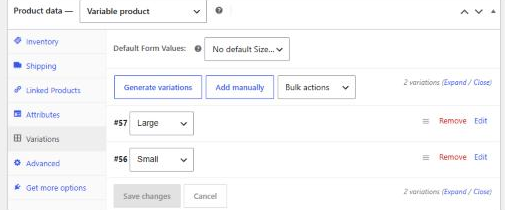
Use the variation ID when you want a specific option. Use the parent product’s ID, 55 here, when you mean the product as a whole.
3. Find it on the front end, without logging in
If you don’t have access to the dashboard, the ID is in the page’s code:
- On a product page, view the source (Ctrl+U, or Cmd+Option+U on a Mac) and search for
postid-. My Night Guard page hadpostid-55. - On the shop page, each add-to-cart button carries
data-product_id, with the product’s ID as its value.
One thing I hit on my test store: a brand-new WooCommerce store starts in coming soon mode, so visitors see a “Great things are on the horizon” page instead of your products. The postid- class was still in the code, but the shop’s buttons only appeared once I set the store live under WooCommerce → Settings → Site visibility.
4. Get many IDs at once
Hovering works for one product. For a whole catalog, there are two faster routes.
Export your products. Go to Products → All Products → Export and download the CSV. WooCommerce’s exporter includes an ID column by default, alongside the SKU, name and price, so you get every product’s ID in one spreadsheet. Variations are exported as their own rows with their own IDs.
Ask the store directly. WooCommerce has a public Store API that your shop’s own cart and checkout use. Adding /wp-json/wc/store/v1/products?search=guard to my test store’s address returned the Night Guard with its ID (55), its SKU and its variation IDs (56 and 57), without logging in. Replace “guard” with a word from your product’s name. It only lists products that are published and visible in your shop.
Category and tag IDs work differently
Product categories and tags have IDs too, and some plugins ask for them. Unlike products, they don’t show the ID when you hover. On my test store, Products → Categories only offered Edit, Quick Edit and View. The ID is in the address of the edit link instead: hover over Edit or open the category, and look for tag_ID= in the address bar. My Uncategorized category was tag_ID=19.
Copies get a new ID
IDs are permanent, but each product gets its own, so a copied product is a different product as far as plugins and links are concerned. WooCommerce has its own Duplicate link under each product in the list. On my test store, duplicating the Whitening Kit (ID 53, SKU WK-01) created a draft called “Whitening Kit (Copy)” with ID 59 and SKU WK-01-1, then opened it for editing.
So if you rebuild a product by copying it and deleting the old one, update anything that pointed at the old ID: add-to-cart links, shortcodes, discount rules and plugin settings. Links that still use the old ID will stop working.
When you’ll need the product ID
- Add-to-cart links. Add
?add-to-cart=and the ID to your site address, for exampleyoursite.com/?add-to-cart=53. On my test store that put the Whitening Kit straight into the cart, and?add-to-cart=56added the Small Night Guard. Adding&quantity=2sets the quantity:?add-to-cart=54&quantity=2put two toothbrushes in my test cart. It’s handy for buttons in emails or on a landing page. - Shortcodes, which show specific products on a page; see my guide to WooCommerce shortcodes.
- Plugin settings, such as product-specific discounts, upsells or shipping rules.
- Support requests, where a developer asks which product is affected.
If you’re setting up a store and want product links, variations and checkout working properly from the start, that’s part of my WordPress development work. Weighing WooCommerce against a hosted store? See WooCommerce vs Shopify.
