

Google Business Profile posts are the short updates, offers and events you publish straight onto your listing in Google Search and Maps. They’re free, they take a few minutes, and most local businesses never use them. With Thanksgiving and Christmas coming, this is also the week to check your holiday hours, because a profile that says “Open” on a day you’re closed costs you a wasted trip and often a bad review.
The screenshots below are from my own Business Profile, WebcentralPH, taken in November 2026. I opened each form and closed it again without posting or saving anything.
Where Google Business Profile posts show
According to Google, customers find your posts:
- On mobile: in the Updates or Overview tabs of your profile in Search and Maps.
- On a computer: in the From the owner section of your profile.
They sit right next to your reviews, photos and hours, so a fresh post is one more reason for someone comparing three businesses to pick yours.
The three types of post
When you sign in and search for your business name, Google shows your manager panel. Posts is in the top row.
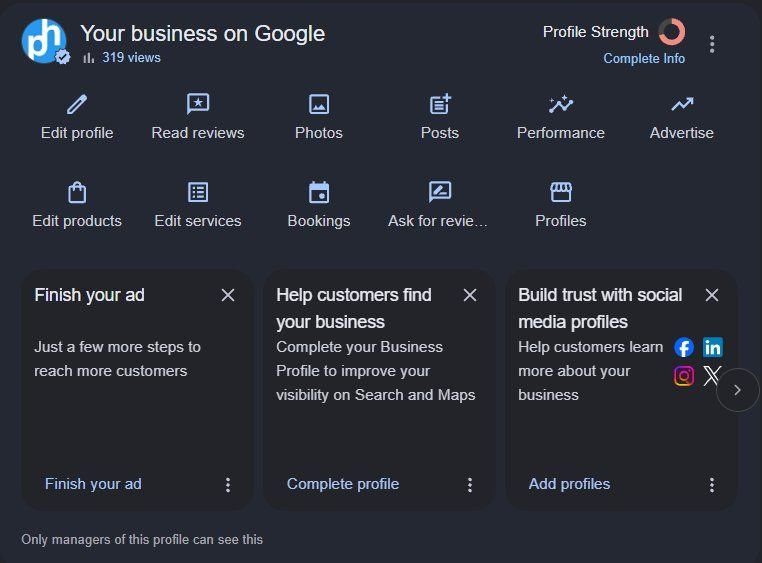
Select Posts, then Add post, and pick one of three types.
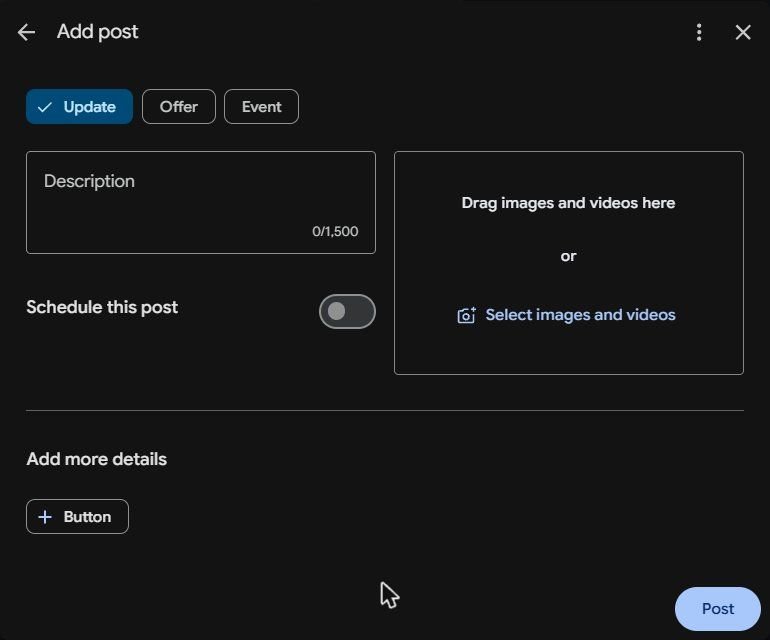
Update
The everyday post: news, a new service, a tip, a photo of finished work. You get a description of up to 1,500 characters, photos or videos, and an optional button.
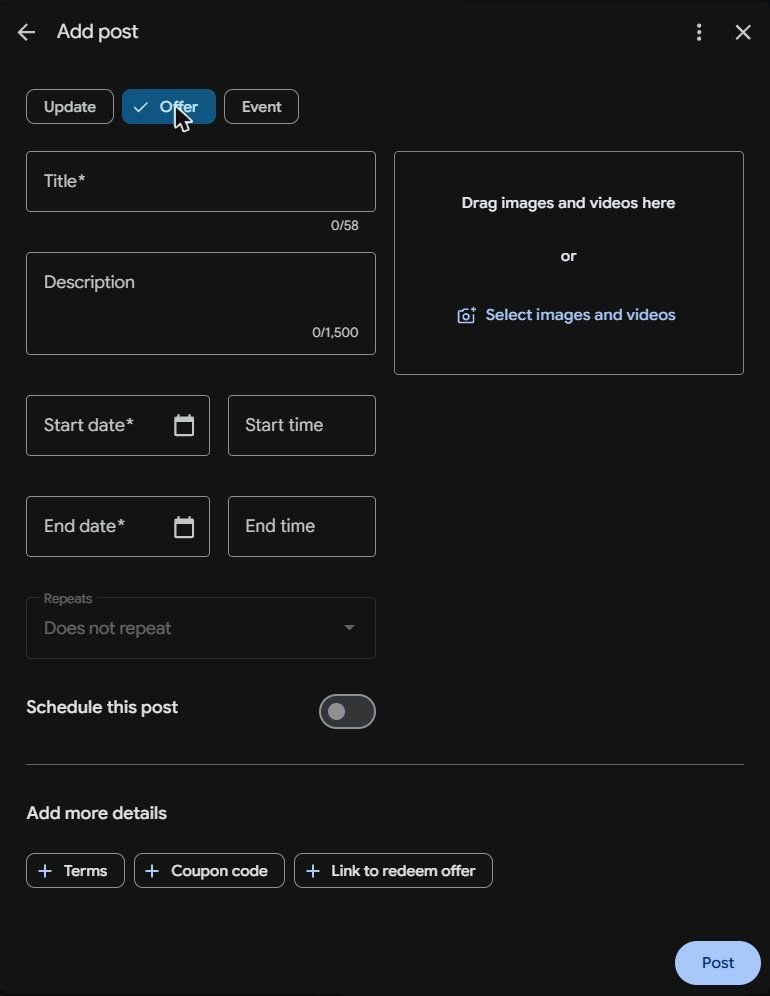
Offer
For a sale or discount. An offer needs a title (up to 58 characters) and a start and end date. Google adds a View Offer button automatically, and you can add terms, a coupon code and a link to redeem it.
Event
For anything with a date: an open day, a workshop, extended holiday opening. It has the same title and date fields as an offer. Google’s help notes that if you leave out the times, the event shows as lasting the whole day.
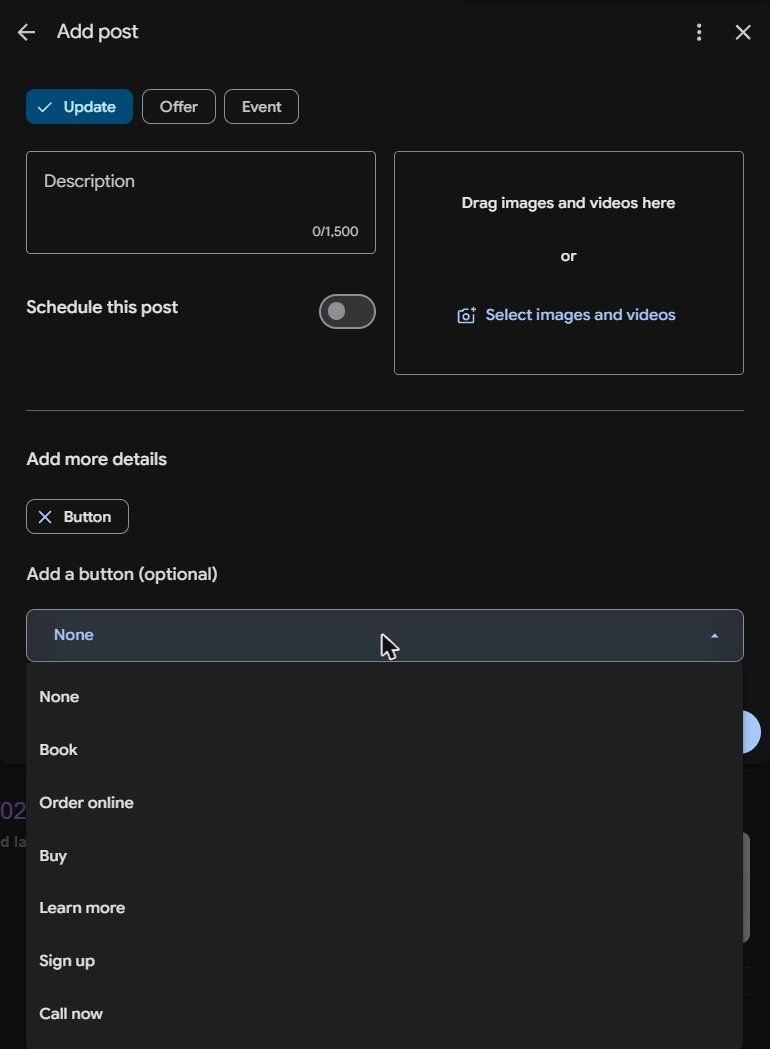
Buttons
Updates and events can carry one button. The choices are Book, Order online, Buy, Learn more, Sign up and Call now.
What makes a post worth clicking
- Lead with the useful part. The first line is what people see before they tap. “Closed Thanksgiving Day, open 8am Friday” beats “Happy holidays from all of us!”
- Use a real photo. A photo of your team, your shop or a finished job looks more trustworthy than stock images. My guide to Business Profile photo sizes covers the dimensions.
- Add one clear button. Call now for urgent services, Book for appointments, Learn more for everything else.
- Leave phone numbers out of the text. Google’s help warns that posts with a phone number in the description might be rejected if the number can’t be verified as yours. Your number is already on the profile.
- Post regularly. Google archives posts older than 6 months unless they have a date range, so an old post eventually disappears. Once or twice a month keeps something current.
You can plan ahead too. Every form has Schedule this post, and offers and events can repeat weekly or monthly.
10 example posts by industry
Use these as starting points and swap in your own details:
- Plumber (Update, Call now): “Pipes freeze fast in a cold snap. Here’s how to keep the water running, and the number to call if they don’t.”
- Dentist (Offer, Book): “New patient check-up and clean in December. Book online before the holiday rush.”
- Restaurant (Event, Book): “Christmas Eve set menu, two sittings: 5pm and 8pm. Tables are limited.”
- Hair salon (Update, Book): “Holiday appointments are filling up. Saturdays in December are almost gone.”
- Landscaper (Update, Learn more): “Before and after: this week’s yard cleanup in Tualatin. Fall cleanups booking now.”
- HVAC (Offer, Call now): “Furnace tune-up special until December 15. Avoid a breakdown on the coldest night.”
- Gym (Event, Sign up): “New Year starter class, January 5. Free for first-timers.”
- Accountant (Update, Learn more): “Tax season checklist: the five documents to start collecting now.”
- Auto repair (Update, Call now): “Winter check: battery, tyres and wipers in 30 minutes, no appointment needed.”
- Retail store (Offer, Buy): “Black Friday weekend: 20% off storewide, Friday to Sunday.”
Each one does one job: tells people something timely and gives them one thing to do.
How to set holiday hours on Google
Posts tell people about the holidays. Special hours make sure Google shows the right open and closed times on the day itself.
- Open your Business Profile and select Edit profile, then Hours.
- Next to Special hours, select Add (or the pencil if you’ve set some before).
- Google lists upcoming public holidays for your country. Select Review next to each one, or add your own date.
- Tick Closed if you’re closed, or enter the hours you’re open.
- Select Save.
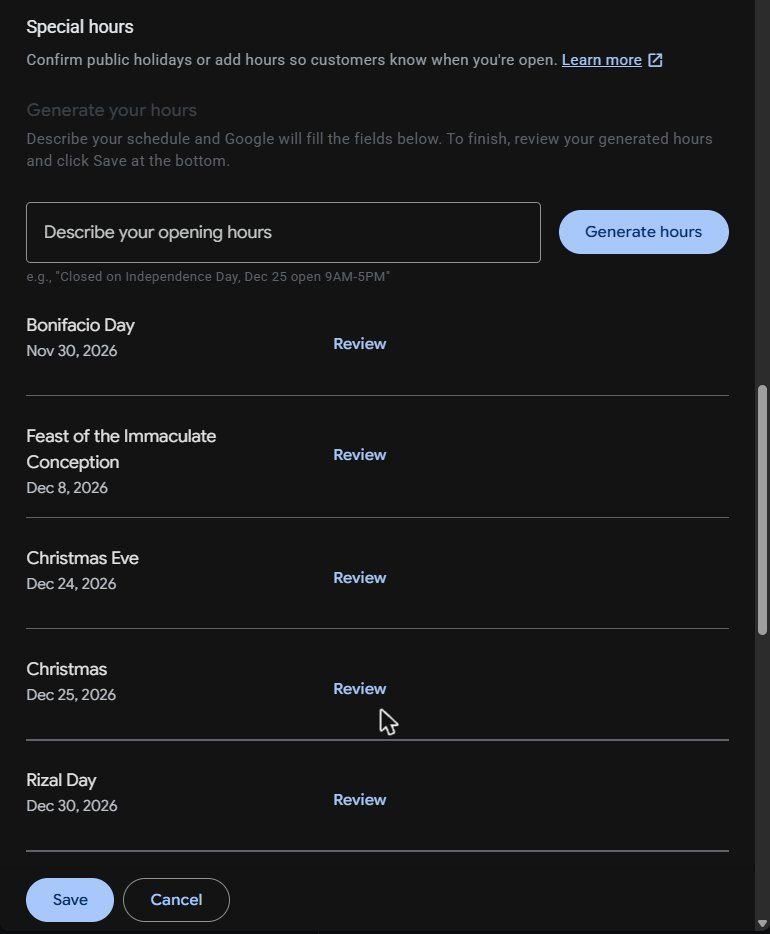
There’s also a newer Generate your hours box. You describe your schedule in plain words, Google’s own example being “Closed on Independence Day, Dec 25 open 9AM-5PM”, and it fills in the dates for you to check before you save.
The trap: Review fills in your normal hours
When I selected Review next to Christmas, Google filled in my regular hours and left Closed unticked. If you save without changing it, you’ve told Google you’re open as usual on Christmas Day.

A few more rules from Google’s help:
- Special hours cover up to 6 days in a row. If you’re closing for 7 days or more, mark the business as temporarily closed instead.
- Confirm holidays even when your hours don’t change. Google says this makes it clear to customers that your hours are accurate.
- Your regular hours must be set to “Open with main hours” for special hours to show.
For this season, that means checking Thanksgiving (Thursday, November 26), Christmas Eve, Christmas Day (Friday, December 25), New Year’s Eve and New Year’s Day (Friday, January 1, 2027).
When a post doesn’t show
After you publish, Google reviews the post. Its status will be one of:
- Live: showing on Search and Maps.
- Pending: still processing, or your profile isn’t verified yet. My guide to Business Profile verification covers that.
- Not approved: it broke a content rule. A question mark next to the status points to the policy.
If you need to change anything else on the profile while you’re there, my guide on how to edit your Google Business Profile walks through every section.
Posts and holiday hours are small jobs, but they’re the details that make a profile look looked-after. If you’d rather hand the whole profile to someone, that’s part of my local SEO service.
