

Elementor vs Elementor Pro is really a question of which Pro features you’d use. I installed the free version, 4.3.5, on a test site running WordPress 7.1.3, counted what’s free and what’s locked in the editor, and measured what a simple Elementor page costs visitors in downloads. Pro prices were checked on Elementor’s site on October 20, 2026.
What you get free, and what’s locked
In the free editor on my test site, 38 widgets were available and 82 more were shown with a lock, as Pro features.
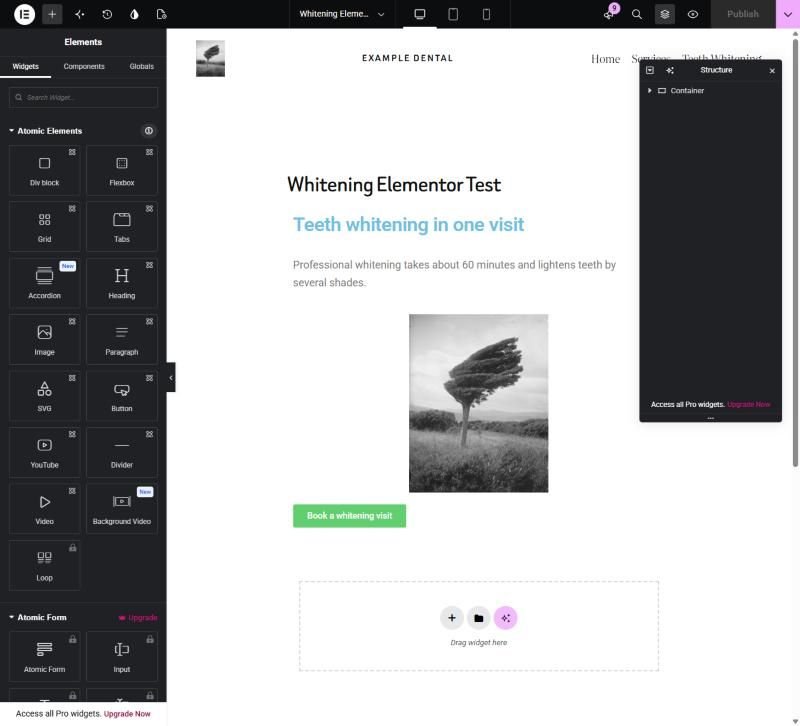
The free 38 cover ordinary page building: headings, text, images, buttons, video, tabs, accordions, icon boxes, testimonials, Google Maps, a shortcode widget and Elementor’s newer layout elements. The 82 Pro widgets fall into a few groups:
| Pro group | Examples |
|---|---|
| Forms and conversion | Form, Login, Call to Action, Countdown, Price Table |
| Content listings | Posts, Loop Grid, Loop Carousel, Portfolio |
| Site parts (Theme Builder) | Site Logo, Nav Menu, Post Title, Breadcrumbs, Archive Posts |
| Sliders and media | Slides, Media Carousel, Testimonial Carousel, Video Playlist |
| WooCommerce | 23 widgets for products, cart, checkout and account pages |
The Pro features a business site actually needs
Most of that list is optional. For a typical service business, Pro comes down to three things:
- Forms. The free version has no form widget. A free form plugin, such as Contact Form 7, can be placed with Elementor’s free Shortcode widget instead.
- Header and footer design. Elementor’s Theme Builder, included from the cheapest Pro plan, lets you design these in Elementor. Without it, your theme handles them; see editing the header.
- Post grids. If you want your blog or case studies laid out in Elementor, that needs Pro’s Posts or Loop widgets.
If none of those matter to you, Elementor free is enough.
Elementor Pro prices
| Plan | Price per year | Sites |
|---|---|---|
| Essential | $60 | 1 |
| Advanced Solo | $84 | 1 |
| Advanced | $108 | 3 |
| Expert | $204 | 25 |
Checked on elementor.com on October 20, 2026. Each plan was listed as renewing at the same regular rate. Essential, the cheapest, includes the Theme Builder and the Form widget, which covers the features above. If you run several sites, the larger plans cost less per site: $36 a site on Advanced and about $8 a site on Expert.
What Elementor costs your page speed
I built the same simple service page twice, with a heading, a paragraph, an image and a button: once in Elementor and once in WordPress’s block editor. Then I measured what a logged-out visitor downloads:
| Same page built with | Files | Total size |
|---|---|---|
| Elementor (free) | 16 | 410 KB |
| Block editor | 2 | 23 KB |
Sizes are uncompressed. A good host compresses them, but the difference in proportion stays.
Two things stood out. Elementor loaded jQuery and its helpers for a page with no interactive features, and it loaded the Roboto and Roboto Slab fonts from Google’s servers by default, about 120 KB of font stylesheets before any font files. Elementor’s settings include an option to turn Google Fonts off, and another to load them from your own server, which is off by default. When I turned Google Fonts off, both Google requests disappeared.
That doesn’t make Elementor unusable, and many fast sites run on it. But it’s a real cost to weigh, and Pro doesn’t reduce it.
Free ways to cover the Pro features
Before paying, check whether something you already have does the job:
| Pro feature | Free option |
|---|---|
| Form widget | A form plugin such as Contact Form 7, placed with Elementor’s Shortcode widget |
| Header and footer (Theme Builder) | Your theme: a block theme’s Editor, or a classic theme’s Customize and Widgets |
| Posts and Loop Grid | WordPress’s own Query Loop block, on pages built in the block editor |
Each free option has its own trade-off. Contact Form 7, for example, added 44 KB of files to every page on my test site, as I measured in my guide to installing a plugin. But for one contact form, it costs less than a yearly licence.
Cutting Elementor’s weight with its own settings
Two settings in Elementor → Settings affect the Google Fonts it loads, and both are in the free version:
- Google Fonts: Disable. Stops Elementor loading fonts from Google at all. On my test site this removed both Google Fonts requests. Use it when your theme already provides the fonts you want.
- Load Google Fonts Locally: Enable. Keeps the fonts but serves them from your own site. Elementor’s own description of the setting says this improves performance and helps with GDPR compliance. It’s off by default.
Neither changes jQuery and Elementor’s own scripts, which loaded on my simple test page regardless.
First-run prompts
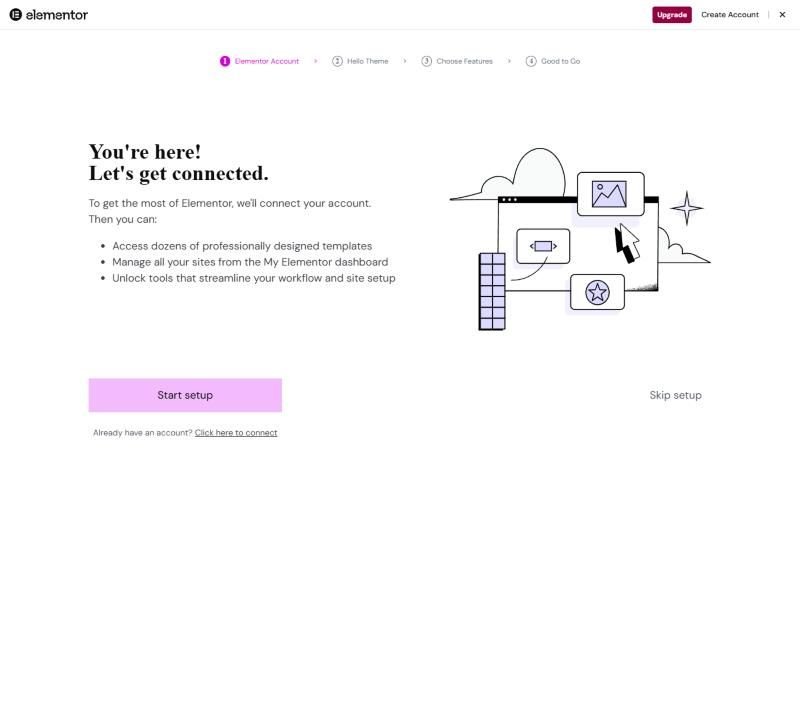
Elementor’s setup after activation asks you to connect an Elementor account and suggests its Hello theme. You can skip it. On my test site I opened the editor and built pages without connecting an account.
Which one I’d pick
If a client’s site already runs on Elementor, I’d keep the free version, use a separate form plugin and let the theme handle the header and footer. I’d buy Essential only if they want to design those parts in Elementor or rely on its post grids.
For a new business site, I’d first ask whether it needs a page builder at all. The block editor now handles most layouts with a fraction of the files. Planning that choice is part of my WordPress development work, and my guide to speeding up WordPress covers what extra files cost.
