

How to install a plugin to WordPress takes about a minute. Choosing the right one takes longer, and it matters more, because every plugin you add is code running on your site. I installed a popular plugin on a test site running WordPress 7.1.3 and measured what it added to pages that didn’t even use it.
Install a plugin from the dashboard
Search the directory
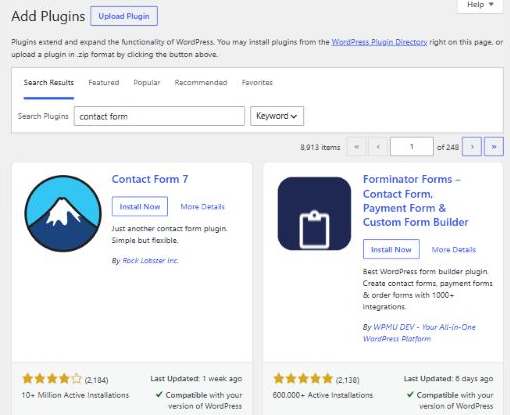
Go to Plugins → Add Plugin and type what you need in Search Plugins, for example “contact form”.
Install it
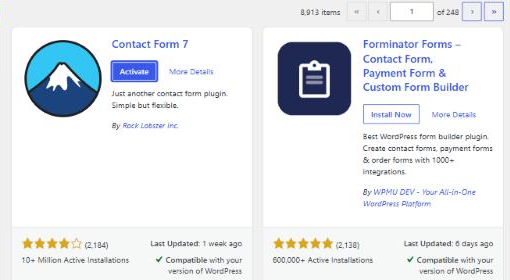
Click Install Now on the plugin you’ve chosen. WordPress downloads it, and the button changes to Activate.
Activate it
Click Activate. Until you do, the plugin is installed but switched off. Most plugins then add a settings page or a new menu item.
If you don’t see Plugins in your menu, your account probably isn’t an Administrator. On my test site, an Editor account had no Plugins menu at all.
Install a plugin from a zip file
Premium plugins you buy come as a .zip file. Go to Plugins → Add Plugin, click Upload Plugin at the top, choose the file, click Install Now, then Activate. Don’t unzip it first; WordPress expects the zip.
Judge a plugin before you install it
There were 8,913 results for “contact form” on my test site. These checks narrow the list quickly:
- Last updated. Weeks or a few months is fine. Over a year suggests nobody is maintaining it.
- Compatibility. The card says whether it’s compatible with your WordPress version. Contact Form 7 had been tested up to 7.1.3, the version on my test site.
- Active installations and ratings. Lots of installs means lots of real sites relying on it. Check the number of ratings as well as the stars.
- Support. On the plugin’s WordPress.org page, the support section shows how many recent threads were resolved. For Contact Form 7 it was 30 of 80 in the last two months.
- Overlap. Don’t add a plugin for something your theme or an existing plugin already does.
The check most people skip: what it adds to every page
A listing can’t tell you this, so I measured it. Before Contact Form 7, a service page on my test site with no form on it loaded no extra stylesheets and one script. After activating the plugin, the same page loaded:
| Added after activating | Size |
|---|---|
| Contact Form 7 stylesheet | 3.0 KB |
| Two Contact Form 7 scripts | 30.6 KB |
| Two WordPress scripts it depends on | 10.7 KB |
| Total, on a page without a form | 44.3 KB, 5 files |
That isn’t a reason to avoid Contact Form 7, which runs on over 10 million sites. Its own documentation explains how to stop loading these files on pages without a form. But it shows why ten plugins chosen without checking can slow a site down. You can check any plugin the same way: view a page’s source (Ctrl+U) before and after activating, and search for the plugin’s name. If your site is already slow, see how to speed up a WordPress site.
Deactivate or delete?
To stop using a plugin, go to Plugins → Installed Plugins. Deactivate switches it off but keeps its files and settings, which is the right first step when you’re testing whether a plugin causes a problem. Delete appears once it’s deactivated and removes its files. Some plugins also remove their saved settings when deleted, so deactivate first if you might want it back.
If a plugin breaks your site
A plugin with a bug can take a site down, usually straight after installing or updating it. My guide to the WordPress white screen of death shows how to disable a plugin by renaming its folder when you can’t reach the dashboard.
Choosing, setting up and keeping plugins updated is part of my WordPress development work, if you’d rather not judge them yourself.
