

How to edit the header in WordPress comes down to three things most people want to change: the logo, the site title and the menu. Where they live depends on whether your theme is a classic theme or a block theme. I set up a header in both on a test site running WordPress 7.1.3, and then switched between them to see what carries over.
To tell which kind you have, look under Appearance in the dashboard. A block theme shows Editor. A classic theme shows Customize, Widgets and Menus instead.
Classic themes: Customize for the logo, Menus for the menu
Logo, site title and tagline
Go to Appearance → Customize → Site Identity. Click Select logo to upload one, and edit the Site Title and Tagline. The preview on the right updates as you type. Click Publish to make it live.
Build the menu
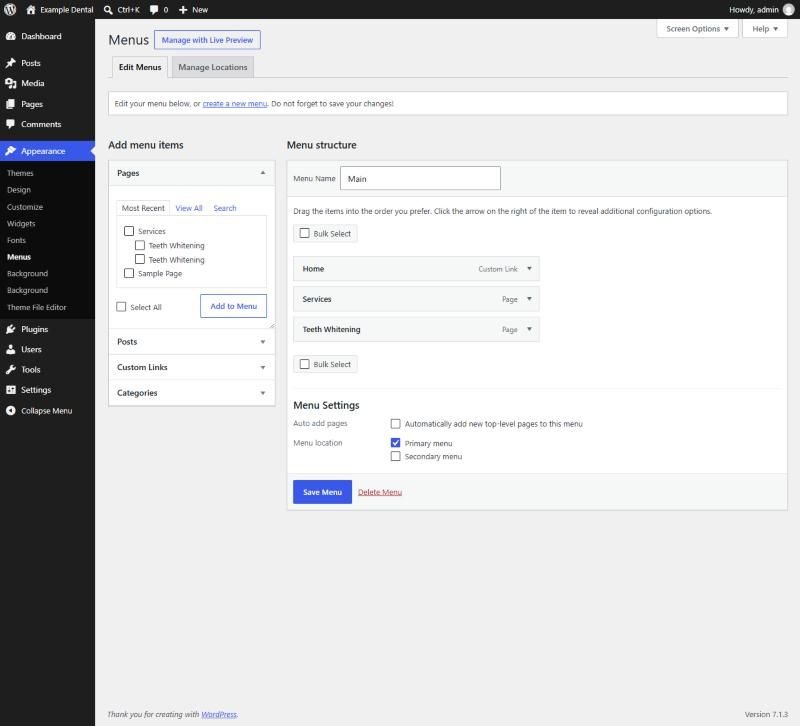
Go to Appearance → Menus. Add pages from the left, drag them into order, and give the menu a name.
Put the menu in the header
Under Menu Settings, tick the theme’s header location. In Twenty Twenty-One it’s Primary menu. Click Save Menu.
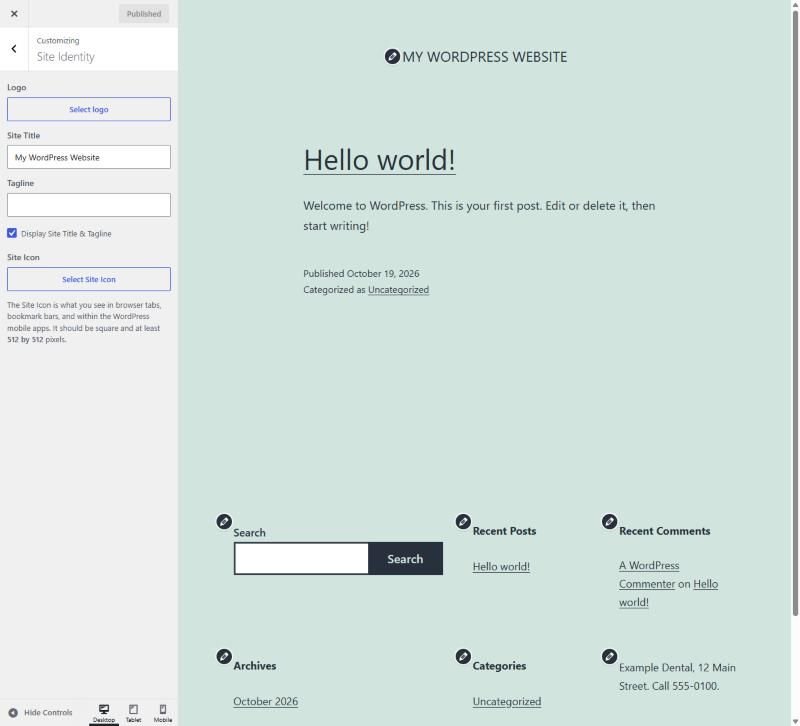
The step people miss is the last one. A menu that isn’t assigned to a location doesn’t appear anywhere, however carefully you built it.
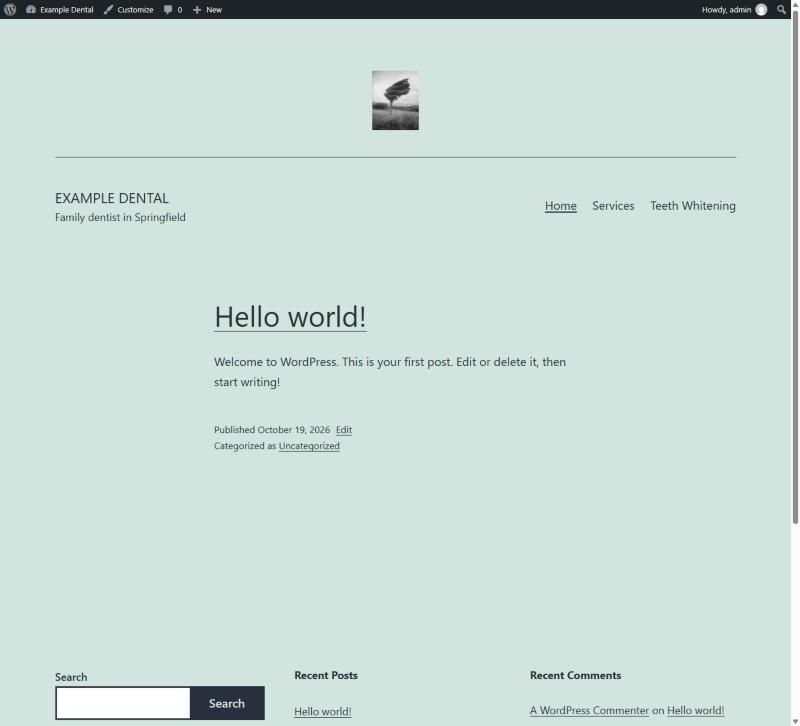
On my test site, with the logo, title, tagline and menu set, the header looked like this. Twenty Twenty-One places the logo above the title, with a line between them. Other classic themes arrange it differently, but the settings are in the same two places.
Block themes: edit the Header template part
Open the header
Go to Appearance → Editor → Patterns and click Header under template parts. Open the one your pages use; in Twenty Twenty-Five it’s the one called just Header.
Change what's in it
The header is made of blocks: Site Title, Navigation and, if your theme includes one, Site Logo. Click a block to change it, or use the + to add one. The Design panel in the sidebar offers the theme’s other header layouts.
Choose the menu
Select the Navigation block and open its menu from the sidebar. Pick a menu, create one, or import an old one under Import Classic Menus. Then click Save.
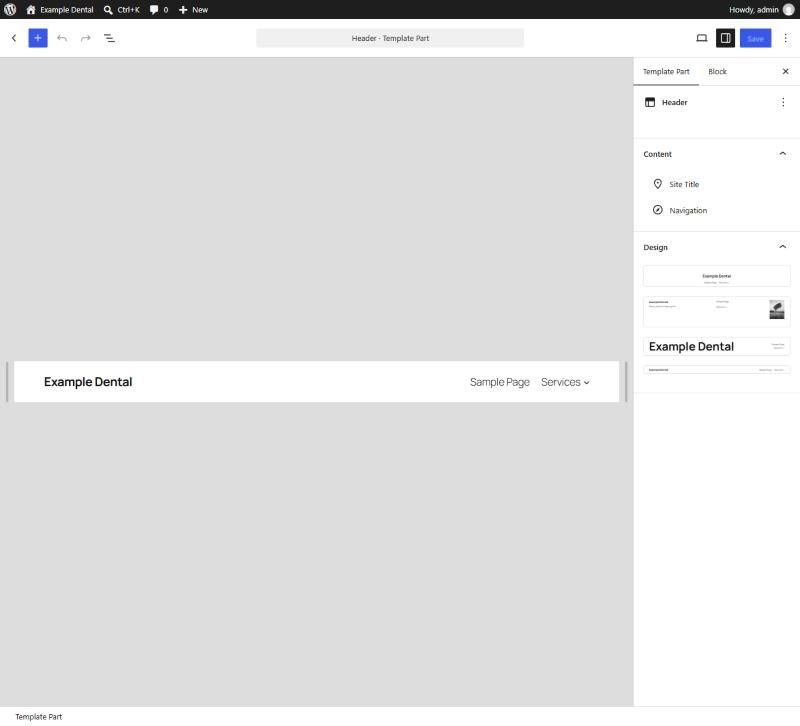
Twenty Twenty-Five’s default header has no logo. If you want one, add a Site Logo block next to the title and set its width in the block settings.
What happens to your header when you switch themes
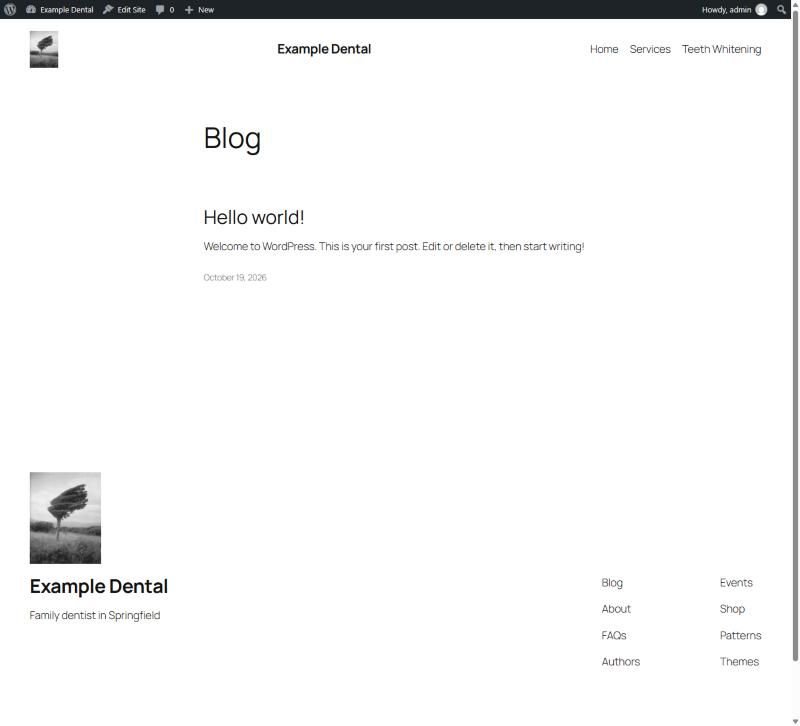
I switched my test site from the classic theme to the block theme with the header fully set up. This is what happened:
- The site title stayed. It’s a site-wide setting, not part of the theme.
- The logo disappeared from the header, because the new header had no logo block. The image wasn’t lost: when I added a Site Logo block, the same logo appeared straight away, and in the footer too.
- The menu was replaced by an automatic list of every page, including a leftover duplicate. Importing the old menu in the Navigation block brought back Home, Services and Teeth Whitening.
One thing to watch when importing: WordPress saves the imported menu and the header change separately, and both need saving. Clicking the editor’s Save button handles both.
Page builders
If your header was built with a page builder, change it there. Elementor’s help center puts it under Elementor → Theme Builder, in the Header card, where you also choose which pages it appears on. I haven’t tested that on my test site.
Keep the header simple
Your header is on every page, so every link in it is a link from every page. Keep the menu to the pages people actually look for, and put the phone number or booking button where visitors can see it without scrolling. My guide to SEO-friendly web design covers how to plan it. If you’d rather have it set up for you, headers, menus and logos are part of my WordPress development work. For the bottom of the page, see how to edit the footer.
