

Custom CSS in Elementor looks like it should be one click away: every widget has a Custom CSS section under Advanced. On the free version it’s locked. I tested Elementor 4.3.5 free on a test site running WordPress 7.1.3, found which CSS boxes are Pro-only, and styled a real Elementor button three ways that work without Pro, checking each result on the live page.
What’s locked in Elementor free
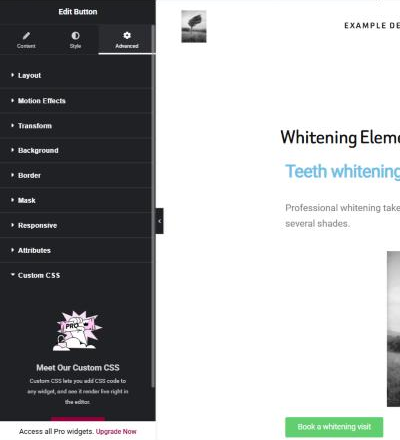
In Elementor 4.3.5 free, all four places to type CSS showed an upgrade prompt instead of a code box:
| Where | In Elementor free |
|---|---|
| Widget → Advanced → Custom CSS | Locked: “Meet Our Custom CSS” upgrade prompt |
| Page Settings → Advanced → Custom CSS | Locked |
| Site Settings → Custom CSS | Locked |
| New atomic elements → Style → Custom CSS | Locked, with a crown icon |
If you want those boxes, check the plan. On October 20, 2026, Elementor’s pricing page listed Custom code & CSS as not included in Essential, the $60-a-year plan. The cheapest plan that included it was Advanced Solo at $84 a year for one site. My Elementor free vs Pro comparison covers what else each plan adds.
What is free is the CSS Classes field, in the same Advanced tab. That’s the key to the methods below.
Method 1: a CSS class plus WordPress’s Additional CSS
This is the method I’d use on most sites. You tag the widget with a class name in Elementor, then write the CSS in WordPress itself.
Give the widget a class
Click the widget, open Advanced, and type a name in CSS Classes, such as
book-cta. Elementor’s own hint says to type it without the dot. Click Publish or Update.Open Additional CSS
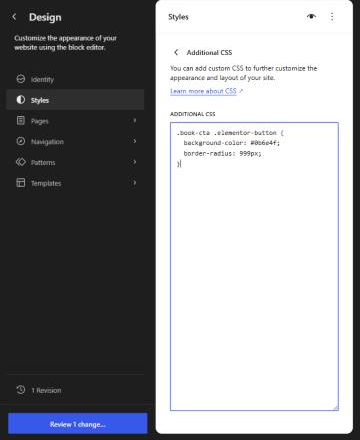
In a block theme, go to Appearance → Editor → Styles, open the three-dot menu and choose Additional CSS. In a classic theme, go to Appearance → Customize → Additional CSS.
Add your CSS and save
Target the class, with the dot this time. For a button, the visible part is
.elementor-buttoninside the widget.
This is the CSS I used on the test site:
.book-cta .elementor-button {
  background-color: #0b6e4f;
  border-radius: 999px;
}
Target the right part of the widget
Elementor adds your class to the widget’s outer wrapper, not to the button itself. On my test site, the wrapper carried book-cta and the link inside it had the class elementor-button, which is why the rule targets .book-cta .elementor-button. A rule on .book-cta alone would style the wrapper box instead. For other widgets, right-click the element on the live page and choose Inspect to see the class names inside it.
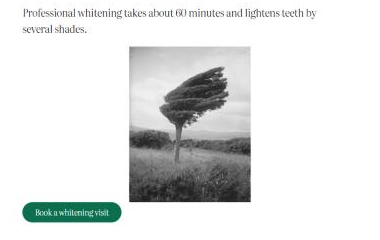
On the live page, the button turned green with fully rounded corners, and the CSS also showed in Elementor’s editor preview. Because Additional CSS loads on every page, the same class works anywhere you add it.
Why your CSS might not work
The first time most people try this, nothing changes. On my test site, that happened as soon as I also set a background colour in the button’s Style tab.
Elementor writes its own CSS for that colour with a long selector: four class names, including the page and the widget’s ID. My rule had two. In CSS, the more specific selector wins, so the button stayed red even though my green rule was on the page. My border-radius still applied, because Elementor hadn’t set one.
Two fixes both worked on the test site:
- Clear the setting in Elementor. Reset the colour in the Style tab, and your CSS takes over. This is the tidier fix.
- Add
!importantto the line, as inbackground-color: #0b6e4f !important;. This worked too, but use it sparingly: it also overrides the setting for anyone who later edits that widget in Elementor and wonders why nothing changes.
The editor preview can differ from the live page
One more thing I hit: with no colour set in Elementor, the editor preview still showed the button in Elementor’s default accent green, while the live page showed my colour. In the preview, Elementor added its default global colour with the same long selector. So check the published page, not just the editor, before deciding your CSS isn’t working.
Method 2: the HTML widget, for one page only
If the CSS should only apply on one page, Elementor’s free HTML widget can hold it. Drag an HTML widget onto the page and type your CSS inside a <style> tag:
<style>
.book-cta .elementor-button { letter-spacing: 2px; }
</style>
On the test site, the button’s letter spacing changed to 2px on the live page. The widget doesn’t show anything to visitors. The downside is that the CSS is hidden inside the page’s layout, where the next person to edit the site may not find it, so I’d keep this for one-off tweaks.
Method 3: use Elementor’s own controls first
Before writing CSS, check whether a control already does it. The Style and Advanced tabs in Elementor free cover colours, typography, spacing, borders, rounded corners, shadows and positioning. The new atomic elements also have a free Classes field, where you can create a named class and style it with the visual controls, then reuse it on other elements. CSS is worth it for things the controls can’t do, such as hover effects on a part of a widget or styling inside a third-party plugin’s output.
What I didn’t test
I didn’t install Elementor Pro, so I haven’t tested Pro’s own Custom CSS box. My test site uses a block theme, so the classic-theme Customizer route is from WordPress’s documentation rather than my own test.
If you’d rather not dig through selectors, tidying up an Elementor site’s styling is part of my WordPress development work. For fonts specifically, see my guide to changing fonts in WordPress.
