

Elementor not loading usually means one of four things, and the screen you’re stuck on tells you which. To see each one for myself, I installed Elementor 4.3.5 on a test site running WordPress 7.1.3, then broke the editor on purpose with a small faulty plugin, in different ways. Below is what each failure looked like and the fix that worked.
Match what you see
| What you see | What it usually means | Start here |
|---|---|---|
| The grey Elementor loading screen, forever, with no message | A plugin or theme script is breaking the editor | Safe Mode, then the browser console |
| “The preview could not be loaded” with an error code | A PHP error while loading the page preview | The preview debug link |
| “There has been a critical error on this website” | A PHP error on the editor screen itself | Safe Mode, then the debug log |
| A “Can’t Edit?” box in the corner | The editor hasn’t finished loading after 30 seconds | Wait a moment, then Safe Mode |
Step 1: Turn on Safe Mode
Safe Mode is Elementor’s built-in test for conflicts. It opens the editor without your theme and without your other plugins. Your live site isn’t affected.
Open Elementor's Tools
In the dashboard, go to Elementor → Editor, then Tools in Elementor’s own sidebar. In Elementor 4.3.5, Tools, Settings and System Info all live there, not in the main WordPress menu.
Enable Safe Mode
Set Safe Mode to Enable and click Save Changes.
Open the editor again
Go back to your page and click Edit with Elementor.
When my faulty plugin caused a critical error on the editor screen, Safe Mode got the editor working straight away:
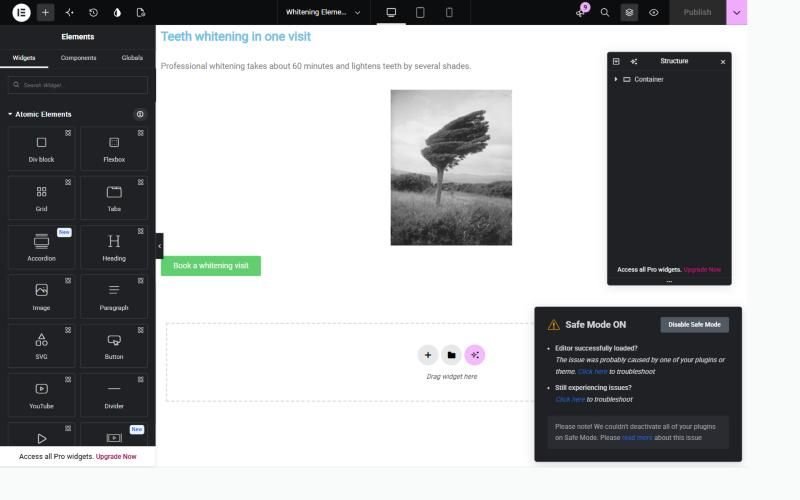
If the editor loads in Safe Mode, the problem is a plugin or your theme. If it still doesn’t load, look at the server: PHP version, memory and hosting (Step 4).
Three things to know about Safe Mode, from testing it and reading Elementor’s code:
- It only works in your browser. Elementor ties it to a cookie in the browser that turned it on, so other editors on the site aren’t affected.
- Must-use plugins still load. My test site has some, and Elementor showed a notice that it “couldn’t deactivate all of your plugins”. Hosts often add must-use plugins, so if you see that notice, one of those could still be the cause.
- Turn it off when you’re done, in the same Tools screen. You can’t use your theme or other plugins in the editor while it’s on.
Step 2: Find the plugin
Safe Mode tells you that a plugin or theme is at fault, not which one. To find it, go to Plugins, deactivate them one at a time (or half at a time on a big site), and try the editor after each. To test the theme, switch to a default theme like Twenty Twenty-Five.
On my test site, the culprit left Elementor on its loading screen with no message at all. Deactivating that one plugin brought the editor straight back. Once you know which plugin it is, check for an update to it, or replace it.
Do this on a staging copy if you can. Deactivating plugins on a live site can switch off things visitors rely on, such as forms or a cookie banner.
Step 3: Read the actual error
Guessing takes longer than reading the error. Where to find it depends on the symptom.
“The preview could not be loaded”

Click Click here for preview debug. On my test site, the normal error page only said “There has been a critical error on this website.” The preview debug page showed the actual error: a missing function, the plugin’s file name and the line number. That points straight at the plugin to deactivate. Elementor prints this itself, so it worked even though my site was set not to display errors.
Stuck on the loading screen
When the editor never gets past the loading screen, the error is usually in the browser, not on the server. Press F12 (or Cmd+Option+I on a Mac), open Console, and reload the editor. On my test site the console showed a stack of red “Uncaught TypeError” messages from Elementor’s scripts. The first one is the one that matters; the rest follow from it.
A critical error
WordPress’s “critical error” page hides the details. Turn on the debug log to see them: my WordPress debug log guide shows how, step by step.
The “Can’t Edit?” box
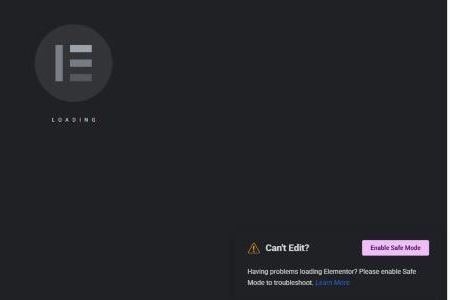
Elementor’s code shows this box if the editor still hasn’t loaded after 30 seconds. It doesn’t always mean something is broken: on my test site it also appeared on a slow load that finished a few seconds later. If the editor never arrives, use the Enable Safe Mode button in the box.
Step 4: Check the server and two settings
If Safe Mode didn’t help, check what Elementor needs from the server. Its requirements page, last updated October 16, 2026, listed:
- WordPress 6.8 or later
- PHP 7.4 or later, with PHP 8.3 or later recommended
- A WordPress memory limit of 256 MB minimum, 512 MB recommended
You can see your site’s values in Elementor → Editor → System → System Info. Mine showed PHP 8.3.33 and a 512M memory limit. If yours is lower, ask your host to raise it.
Two settings in Elementor → Editor → Settings come up in most advice about this problem:
- Switch Editor Loader Method (Advanced tab). Elementor’s code shows it only adds line breaks to the editor’s settings data, for servers that limit output by line. It did nothing for the plugin conflict on my test site, so try it only once plugins and the server check out.
- CSS Print Method (Performance tab). This one matters when the editor works but the live page loses its styles. On my test site, Elementor’s CSS file for the page returned a “not found” error, so the live page ignored a button colour I’d set in Elementor. Switching to Internal Embedding put the CSS inside the page and the colour came back.
What I didn’t test
I didn’t test on a real host, so I haven’t tested security firewalls (like ModSecurity) or server caching. A low memory limit didn’t give a clear result on my test site, so the memory figures above are Elementor’s, not mine.
If you’ve tried all of this and the editor still won’t open, finding the cause on a live site is the kind of job I take on in my WordPress development work. If the whole site is blank rather than just the editor, see my guide to the WordPress white screen of death.
