

A WordPress white screen means PHP hit a fatal error and stopped before the page could load. On WordPress 5.2 and later you’ll usually see “There has been a critical error on this website” instead of a blank page, but it’s the same problem with the same fixes.
I broke a test site on purpose to check every step below. The test ran on WordPress 7.1.3 with PHP 8.3, and the screenshots come from it. The fixes are in order, fastest first.
What you’ll actually see
When a plugin or theme breaks, visitors get this:

If you’re logged in and try to open your dashboard, the message adds one line:

A completely blank page with no message at all usually means an error WordPress couldn’t catch, often a typo in wp-config.php. That case has its own section below.
1. Check your email for the recovery link
When WordPress catches a fatal error, it emails the site’s admin address with a link to recovery mode. According to WordPress’s own announcement of the feature, that link logs you in with the broken plugin or theme paused, so you can reach the dashboard and deactivate or update it.
Check the inbox (and spam folder) of the email address under Settings → General. My test site couldn’t send email, so I couldn’t test this step myself. If no email arrives, or the address is one nobody reads, go to step 2.
2. Turn on the debug log to find the cause
The debug log tells you exactly which file failed. Open wp-config.php in your site’s main folder through your host’s file manager or FTP, and replace the WP_DEBUG line with:
define( 'WP_DEBUG', true );
define( 'WP_DEBUG_LOG', true );
define( 'WP_DEBUG_DISPLAY', false );
WP_DEBUG_DISPLAY set to false keeps the errors in the log and off the page, so visitors don’t see file paths from your server. Some guides tell you to set it to true. Don’t do that on a live site.
Reload the broken page, then open wp-content/debug.log. On my test site, the important line was:
PHP Fatal error: Uncaught Error: Call to undefined function lab_contact_widget_register_blocks() in /wordpress/wp-content/plugins/lab-contact-widget/lab-contact-widget.php:11The part that matters is the folder after wp-content. Here it’s plugins/lab-contact-widget, so that plugin is the cause. If it says themes/ and a theme name, it’s the theme. If it says Allowed memory size ... exhausted, go to step 5.
3. Disable the broken plugin
In your file manager, go to wp-content/plugins and rename the folder the log named, for example from lab-contact-widget to lab-contact-widget-off.
On my test site, the site came back as soon as the folder was renamed. In the dashboard, WordPress had deactivated the plugin and said why:
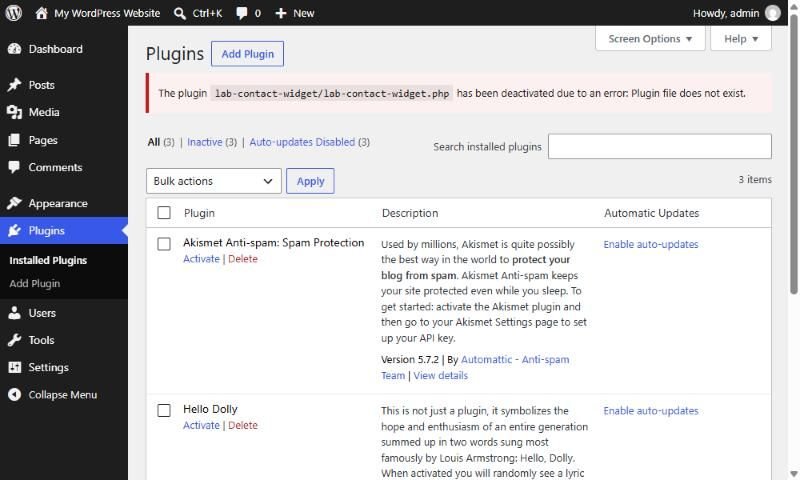
Then rename the folder back. The plugin stays deactivated until you choose to turn it on. Check for an update or a fix from its developer before you do.
No log, or no plugin named in it? Rename the whole plugins folder to plugins-off. That deactivates every plugin at once. If the site comes back, rename it to plugins and reactivate them one at a time until the error returns.
4. Switch away from a broken theme
If the log names a file in wp-content/themes/, rename that theme’s folder.
This step has a detail most guides skip. On my test site, after renaming the theme folder, the site didn’t switch to a default theme straight away. It showed a different error: “Template is missing.” WordPress only switched themes when I opened Appearance → Themes in the dashboard:
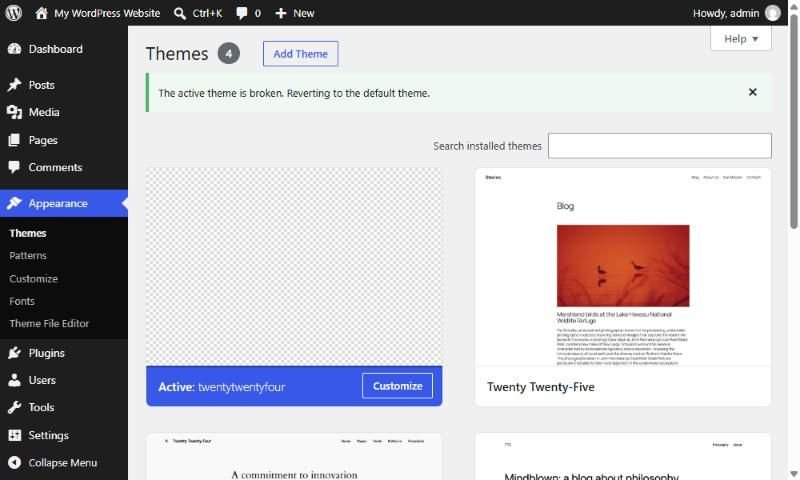
So after renaming, log in and open Appearance → Themes once. It only works if a default WordPress theme, such as Twenty Twenty-Five, is still installed, so don’t delete them all.
5. Raise the memory limit
If the log says Allowed memory size of ... bytes exhausted, PHP ran out of memory. Add this line to wp-config.php, above the line that says “That’s all, stop editing!”:
define( 'WP_MEMORY_LIMIT', '512M' );On my test site this raised PHP’s limit from 256 MB to 512 MB, and the job that crashed finished. WordPress’s documentation warns that some hosts don’t allow WordPress to raise the limit. If the error stays, ask your host to raise it, and find out what is using so much memory. It’s often a single plugin or a very large import.
A truly blank page, with no message
If the page is completely white and none of the above shows up, the error happened before WordPress could catch it. The usual cause is a typo in wp-config.php, often from editing it to fix something else.
I tested this by deleting one semicolon. My test site showed a “Parse error” naming wp-config.php and the line number. Most live hosts hide PHP errors, because PHP’s own production settings turn display_errors off, so on a live site that same typo shows a blank page. The debug log won’t help here either: nothing was written to it, because WordPress failed before reading the logging settings.
Undo your last change to wp-config.php, or restore it from a backup. If you didn’t change it, check your host’s PHP error log, which most control panels show under logs or errors.
Once the site is back
- Set
WP_DEBUGback tofalse, or remove the three lines you added. - Delete
wp-content/debug.log. On my test site, anyone could open it in a browser at/wp-content/debug.log, and it lists your server’s file paths. - Update or replace the plugin or theme that caused it before you turn it back on.
If your site breaks after updates more than once, the problem is usually how updates are handled, not bad luck. Testing updates before they reach the live site prevents most white screens, and that’s part of my WordPress development work. A slow site that isn’t broken is a different problem; see how to speed up a WordPress site.
