

To log WordPress errors safely, you want them written to a file you can read, not printed on pages your visitors see. WordPress does this with three settings in wp-config.php. I tested them on WordPress 7.1.3 with PHP 8.3, with debug off, with the recommended settings, and with the log kept outside the public folder.
Why not just turn on WP_DEBUG?
Because on many hosts, errors then show up on the page. With WordPress’s default settings on my test site, a small PHP warning was printed at the top of every page that triggered it, server path and all:
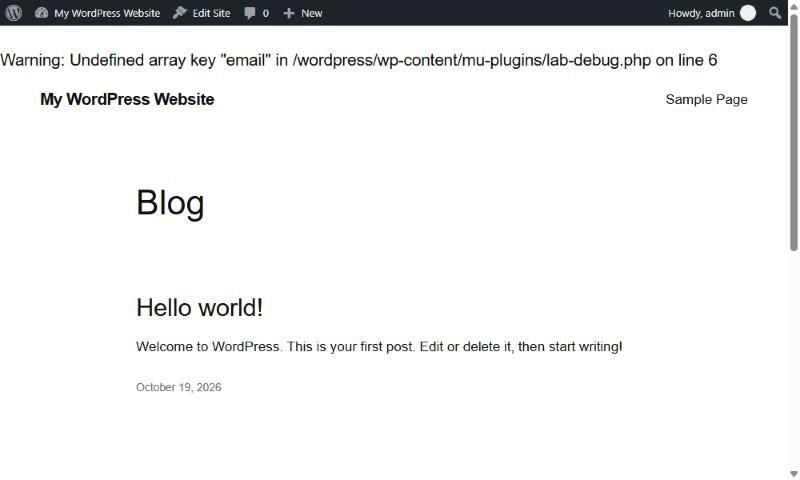
Whether you see this depends on your host’s PHP setting display_errors. PHP’s recommended production settings turn it off, but not every host follows them. The settings below make WordPress hide errors from the page either way.
The settings
Open wp-config.php in your site’s main folder and find the line define( 'WP_DEBUG', false );. Replace it with:
define( 'WP_DEBUG', true );
define( 'WP_DEBUG_LOG', true );
define( 'WP_DEBUG_DISPLAY', false );
What each one does:
WP_DEBUGis the main switch. With it off, WordPress doesn’t report deprecation notices at all. On my test site, a deprecated function call left no trace until this was on.WP_DEBUG_LOGwrites errors towp-content/debug.log.WP_DEBUG_DISPLAYset tofalsekeeps errors off the page. With these three settings, the same warning that appeared in the screenshot went only to the log.
Then load the page where the problem happens, and open wp-content/debug.log.
Reading the log
These are three real lines from my test site, one of each kind you’ll see most:
[19-Oct-2026 14:33:11 UTC] PHP Warning:  Undefined array key "email" in /wordpress/wp-content/mu-plugins/lab-debug.php on line 6
[19-Oct-2026 14:33:13 UTC] PHP Deprecated:  Function lab_old_contact_form is <strong>deprecated</strong> since version 7.0.0! Use lab_contact_form instead. in /wordpress/wp-includes/functions.php on line 6260
[19-Oct-2026 14:33:14 UTC] Lab Contact Widget: form sent to office@example.com
Every line follows the same pattern: the time in UTC, the type, the message, then the file and line number.
- PHP Warning: something went wrong but the page still loaded. Here, code asked for an “email” setting that didn’t exist. Warnings often explain features that quietly stopped working.
- PHP Deprecated: code is using something WordPress or PHP plans to remove. It works today and may break after a future update. The
<strong>tags are really in the file, because WordPress writes this message as HTML. - A line with no “PHP” label was written on purpose by a plugin, with PHP’s
error_log()function. These are notes, not errors. - PHP Fatal error lines are the ones that break a page completely. My guide to the WordPress white screen of death covers those.
To find the culprit, look at the folder after wp-content. plugins/ plus a name points to that plugin, and themes/ plus a name points to a theme. A path in wp-includes, as in the deprecated line, is where WordPress noticed the problem, not where it came from. Search the rest of the log for the function name to find which plugin called it.
Keep the log private
On my test site, anyone could open /wp-content/debug.log in a browser and read the whole file. Some hosts block that. Don’t assume yours does. The log holds your server’s file paths, and plugins can write anything into it. The note in my test included an email address.
Since WordPress 5.1, WP_DEBUG_LOG can be a file path instead of true. Point it at a folder outside your public folder:
define( 'WP_DEBUG_LOG', '/home/youraccount/logs/wp-errors.log' );Use your own path. Your host’s file manager shows the full path to public_html, and the folder above it is usually yours but not public. Create the logs folder first. On my test site, with the log pointed outside the public folder, errors went to that file, no debug.log appeared in wp-content, and /wp-content/debug.log returned a 404.
Don’t leave it on for months
The log grows with every page view that hits the same problem. On my test site, 58 page views with one warning each added 58 lines of 129 bytes. At 1,000 page views a day that’s about 4 MB a month, and a plugin throwing ten warnings a page makes it about 40 MB. FreshySites describes a PHP error log that had reached 39 GB before anyone noticed.
When you’ve found the problem:
- Set
WP_DEBUGback tofalse, or remove the three lines. - Delete the log file.
- Fix or replace whatever was filling it.
Regular warnings in a log often mean a plugin is falling behind on updates. Checking logs and catching that early is part of my WordPress development work. If the site is slow rather than erroring, see how to speed up a WordPress site.
