

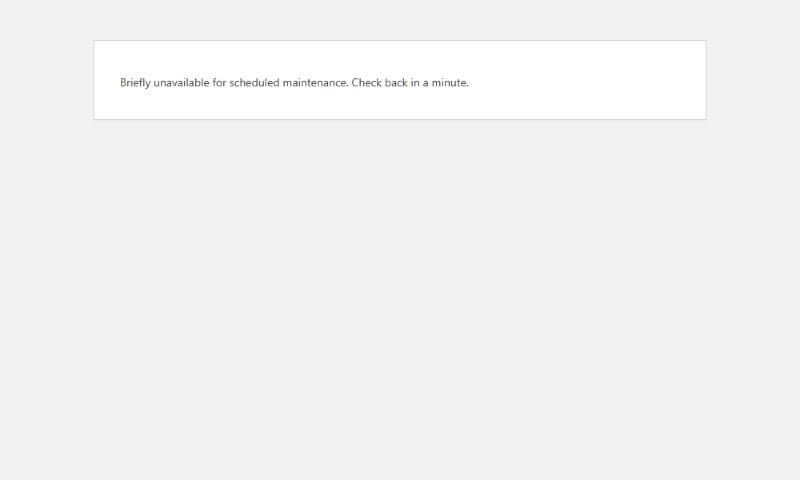
WordPress maintenance mode stuck on your site? It shows one line, on the site and in wp-admin: “Briefly unavailable for scheduled maintenance. Check back in a minute.” The cause is a small file called .maintenance that an update left behind. Deleting it takes about a minute.
I reproduced this on a test site running WordPress 7.1.3 and PHP 8.3, and checked WordPress’s own code for how the file works.
Why it happens
Every time WordPress updates a plugin, a theme or itself, it creates .maintenance in your site’s main folder. While the file exists, every page shows the message above with an HTTP 503 status. When the update finishes, WordPress deletes the file.
If the update stops partway, because the tab was closed, the server timed out or a file couldn’t be replaced, the file stays behind.
The 1-minute fix: delete .maintenance
- Open your host’s file manager, or connect with FTP.
- Go to your site’s main folder, the one that holds
wp-config.php,wp-adminandwp-content. On many hosts it’spublic_html. - Find
.maintenance. Because the name starts with a dot, some file managers and FTP apps hide it. Look for a “show hidden files” setting if you can’t see it. - Delete it, then reload your site.
On my test site, the site came back the moment the file was deleted.
The file itself holds a single line like this, where the number is the time the update started:
<?php $upgrading = 1792417355; ?>If it fixed itself before you got there
WordPress’s own code ignores a .maintenance file once its timestamp is 10 minutes old. I tested this: with the timestamp set 9 minutes in the past the site was still blocked, and at 11 minutes it loaded normally.
So if you’re stuck for longer than about 10 minutes, the file probably isn’t a normal leftover. Two things can cause that:
- A
.maintenancefile someone created by hand. Some guides, and Google’s AI summary, suggest creating one with$upgrading = time();. That version never expires, becausetime()is always “now”. On my test site it was still blocking the site when the file was two hours old. Delete it. - A maintenance or “coming soon” plugin. These show their own page, usually with your logo or a countdown, not WordPress’s plain message. Turn the mode off in the plugin’s settings, or rename the plugin’s folder in
wp-content/pluginsif you can’t log in.
Then check what the update left behind
Deleting the file brings the site back, but the update that was running may not have finished. Log in and check:
- Dashboard → Updates. If the plugin, theme or WordPress version still shows an update available, run it again. If it fails again, note the error message.
- Plugins. A plugin that was mid-update may be deactivated, missing or half-copied. If the site shows “There has been a critical error on this website” instead, follow my guide to the WordPress white screen of death, which uses the same steps to find the broken plugin.
wp-content/upgrade-temp-backup. Since WordPress 6.3, WordPress moves the old copy of a plugin or theme into this folder during an update. If the update fails, it puts that copy back automatically. If an update was cut off before that could happen, the old version may still be sitting in that folder.
If the same update fails twice, stop retrying. Repeated failures usually point to something on the server, such as low disk space or file permissions, and your host can confirm which.
Avoiding it next time
- Run updates one at a time on a busy site, rather than updating everything at once.
- Keep the update tab open until WordPress says it’s finished.
- Take a backup before updating, so a failed update is a quick restore rather than a repair job.
Handling updates safely, with backups and a check that the site still works afterwards, is part of my WordPress development work. If your site is up but slow, see how to speed up a WordPress site.
