

How to delete a WordPress page takes two clicks. The part that decides whether you lose traffic is what happens to the page’s address afterwards. I deleted and renamed pages on a test site running WordPress 7.1.3 and checked each address as a visitor would.
Delete the page
Find the page
Go to Pages → All Pages and hover over the page you want to remove.
Move it to the Trash
Click Trash. The page disappears from your list and from your site.
Empty the Trash, if you're sure
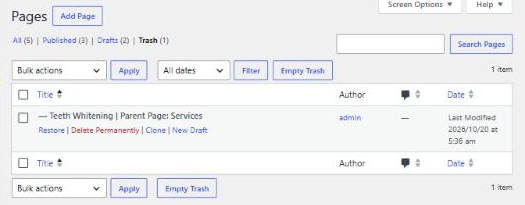
Under Pages → Trash you can Restore it or Delete Permanently. WordPress empties the Trash automatically after 30 days.
What happens to the address
The moment I moved my test page to the Trash, its address returned a 404 Page not found. There’s no grace period while it sits in the Trash. Anyone following a link or a Google result to that page now hits an error, and the rankings it built start to fade.
WordPress does sometimes redirect for you, but not here. When I typed a slightly wrong address, /teeth-whiten/, WordPress guessed and sent me to the real Teeth Whitening page. That guess only works when a live page’s address starts with what was typed, so a deleted page’s own address just shows the 404.
Renaming a page has the same problem
I also changed addresses:
- Renaming a blog post: the old address automatically redirected to the new one.
- Renaming a page: the old address showed a 404.
WordPress keeps old addresses for posts but not for pages. So if you change a page’s address in its settings, treat it like a deletion and add a redirect.
Add the redirect
A 301 redirect tells browsers and search engines the page has moved permanently and sends them to its replacement. Google’s documentation says a permanent redirect signals it to show the new address in search results instead of the old one.
Point the old address at the closest live page: the updated service, the parent category, or a page that answers the same question. Avoid sending everything to the home page: someone looking for a specific service won’t find it there.
WordPress has no redirect manager built in, so you need a plugin or your host’s tools. The most widely used free plugin is Redirection, with over 2 million active installs. After installing it, go to Tools → Redirection, enter the old address as the Source URL and the page it should go to as the Target URL, then click Add redirect.
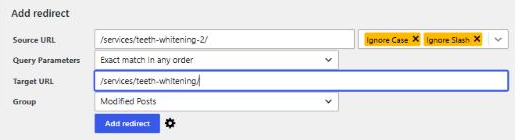
I need to be clear about my test here. The redirect saved and showed in the list as a 301, but my test site runs on a different database from a normal host, the plugin couldn’t create its tables, and the old address still showed a 404. That was a limit of my test setup rather than the plugin. On your own site, check the old address in a private window after adding the redirect. It should land on the new page.
Before you delete anything
- Check whether the page gets visits or has links, in Google Search Console or your analytics. If it does, redirect it or update it instead.
- Update your menus and internal links so they don’t point at the page you removed.
- Keep a backup, because once the Trash is emptied, only a backup brings the page back.
If you’re cleaning up a lot of old pages at once, plan the redirects first. My guide to SEO-friendly web design covers how to structure pages so you need fewer of them. If you’d rather hand it over, page clean-ups and redirects are part of my WordPress development work.
