

How to update PHP on WordPress trips people up because the setting isn’t in WordPress at all. PHP runs on your server, so you change it in your hosting control panel. I tested what happens on both sides: the same WordPress 7.1.3 test site on PHP 7.4, 8.3 and 8.5, and the PHP screen in a real Hostinger account.
Step 1: Check which PHP version you’re on
Go to Tools → Site Health → Info, and open the Server section. It lists your PHP version. My test site showed “8.5.10” there when it was running PHP 8.5.
If your version is out of date, you may already have seen warnings. When I ran the test site on PHP 7.4, WordPress raised it as a critical issue:
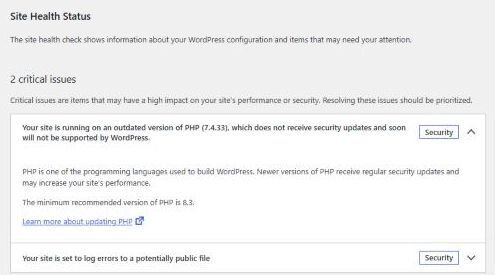
The Dashboard also showed a PHP Update Required box, saying that without an update “you will not be able to upgrade WordPress” in future.
Which version to choose
When I checked on October 21, 2026, WordPress.org recommended PHP 8.3 or greater. PHP’s own support table listed these end dates for security fixes:
| PHP version | Security fixes until |
|---|---|
| 8.2 | December 31, 2026 |
| 8.3 | December 31, 2027 |
| 8.4 | December 31, 2028 |
| 8.5 | December 31, 2029 |
Anything older than 8.2 no longer gets security fixes. Before you pick a version, check your theme and main plugins support it. Their “Requires PHP” line on WordPress.org is the minimum they support, not the newest.
Step 2: Test the new version before you switch
This is the step that keeps your site up. A plugin that isn’t ready for a newer PHP version can show warnings or, in the worst case, take the site down.
Back up the site
Take a full backup of files and database first, so you can roll back.
Make a staging copy
Many hosts offer one-click staging. Switch the staging copy to the new PHP version first.
Turn on the debug log and click around
With the WordPress debug log on, open your key pages, the editor, forms and checkout. Then read the log for anything new.
Here’s what that turned up on my test site, which runs Elementor, TablePress and Essential Addons:
- On PHP 8.5, every page and the Elementor editor still loaded, and Site Health said I was on “a recommended version of PHP”. But the debug log picked up 59 “Deprecated” notices, all from one function in Elementor 4.3.5. Deprecation notices don’t break anything today. They mean the code needs updating before a future PHP version removes the old behaviour. TablePress and Essential Addons logged nothing.
- On PHP 7.4, everything loaded too, with no log entries at all.
So old PHP doesn’t usually break a site straight away, which is why it gets ignored. The cost is security and being locked out of future updates. And a newer version can work while still logging problems you’d only see if you looked.
Step 3: Change PHP in your hosting panel
Every host puts this in a slightly different place, often under a name like “PHP version”, “PHP settings” or “MultiPHP”. Here’s Hostinger’s, from a real account:
Open your website in hPanel
Go to Websites, then choose your site.
Go to PHP Configuration
In the sidebar, open Advanced → PHP Configuration. The PHP version tab lists the versions you can choose.
Pick the version and update
Select the version you tested, then click Update. The button stays greyed out until you choose a different version.
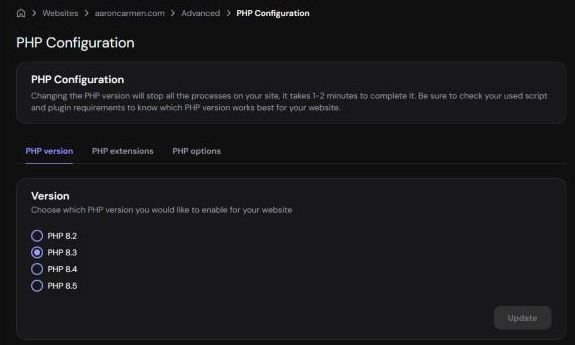
Hostinger’s screen warns that changing the version “will stop all the processes on your site” and takes 1 to 2 minutes, so do it at a quiet time. The same screen has a PHP options tab with settings like the memory limit. On the account I looked at, the limit was 1536M.
Step 4: Check the live site afterwards
Once the switch is done, confirm the new version in Site Health → Info → Server, then visit your main pages, submit a form, and log in to the editor. Check the debug log again for new entries over the next day or two. If something breaks, switch back to the previous version in the same panel and restore your backup if needed.
What I didn’t test
I didn’t change PHP on a live WordPress site, and I only looked at Hostinger’s panel; other hosts’ screens will differ. The site whose panel I used isn’t a WordPress site, so I viewed the setting without changing it.
If you’d rather not risk it on a site that brings in business, testing and switching PHP on a staging copy is part of my WordPress development work. To see your WordPress version while you’re in Site Health, see my guide to finding your WordPress version.
