

How to duplicate WordPress pages depends on what you need copied. WordPress 7.1.3 has no Duplicate button for pages, so you either copy the content by hand or use a plugin. I tested both on a test site and checked exactly what each one carries across, because they don’t copy the same things.
What each method copies
I set up a service page with content, a featured image, a custom template, a parent page, an excerpt and an SEO title, then duplicated it both ways:
| Part of the page | Copy all blocks (no plugin) | Yoast Duplicate Post |
|---|---|---|
| Content (text, images, buttons) | Copied | Copied |
| Title | You type a new one | Same title |
| Featured image | Not copied | Copied |
| Template | Back to default | Copied |
| Parent page | None | Copied |
| Excerpt and custom fields | Not copied | Copied |
| SEO title from an SEO plugin | Not copied | Copied, word for word |
| Result | New draft | New draft |
If you only want the layout as a starting point, Copy all blocks is enough. If you want an exact copy to edit, use the plugin.
Does WordPress have a Duplicate button?
Not for pages. I looked in Pages → All Pages, the page editor’s Actions menu and the Site Editor’s Pages screen, and none of them offers Duplicate. Some guides describe a built-in Duplicate option. That’s on WordPress.com, not the WordPress you install on your own hosting.
Method 1: duplicate a page with a plugin
Yoast Duplicate Post has over 3 million active installs on WordPress.org and was tested up to WordPress 7.1.3 at the time of writing.
Install the plugin
Go to Plugins → Add Plugin, search for Yoast Duplicate Post, then click Install Now and Activate.
Clone the page
Go to Pages → All Pages and hover over the page you want to copy. Click Clone.
Open the copy
A new draft appears in the list with the same title. Open it and make your changes before you publish.
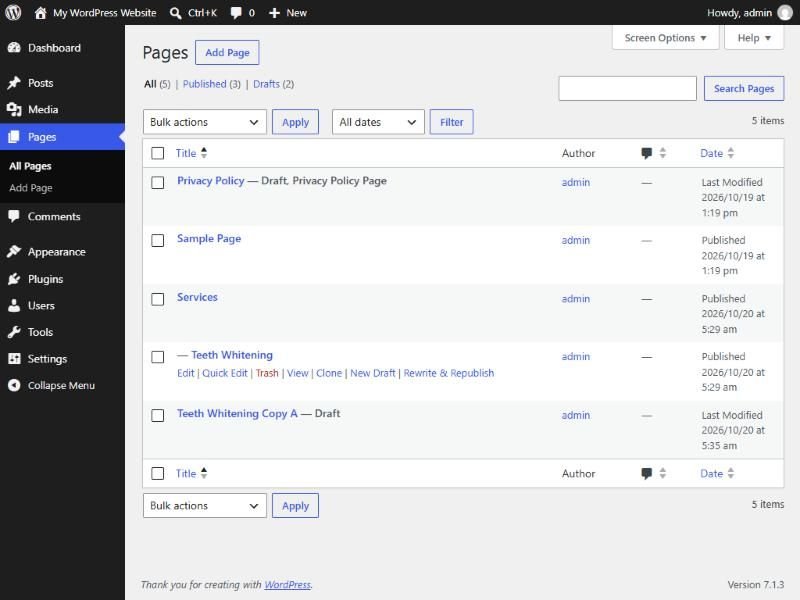
The plugin also adds New Draft, which makes the copy and opens it in the editor straight away, and Rewrite & Republish, for editing a live page in a copy and swapping it in later. I tested Clone. Another popular plugin, Duplicate Page, also has over 3 million installs.
Method 2: copy all blocks, without a plugin
Copy the content
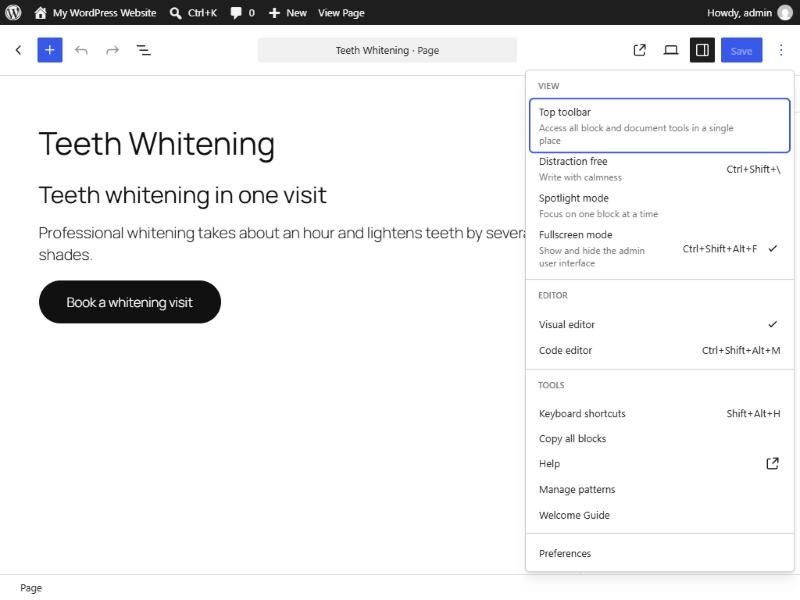
Open the page in the editor. Click the ⋮ menu at the top right and choose Copy all blocks. WordPress shows “All content copied.”
Create a new page
Go to Pages → Add Page. If a Choose a pattern window opens, close it.
Paste and set it up
Add a title, click into the first empty block and paste with Ctrl+V (Cmd+V on a Mac). Then set the featured image, template and parent page again in the sidebar, because none of them come across.
This copies only the page’s content. Page builders such as Elementor keep their layouts in their own fields, so this method won’t bring a builder layout across. Use a plugin for those pages.
Before you publish the copy: the SEO cleanup
This is the step most guides skip. On my test site, I published a clone without changing it. It went live at /services/teeth-whitening-2/ with the same title, the same content and the same SEO title as the original. Search engines see two pages saying the same thing, and the original can lose out.
Before you publish a duplicate, change:
- The title, so the page is about something different.
- The address (slug). WordPress adds
-2to avoid a clash. Replace it with a real one. - The SEO title and meta description in your SEO plugin. A clone keeps them word for word.
- The content itself. A copy with a few words swapped is still a copy. Each page should answer its own question.
- Internal links. Check buttons and links still point where the new page needs them to.
If you’re duplicating to build several similar pages, such as one per service or location, plan them first so each has its own purpose. My guide to SEO-friendly web design covers how to structure pages so they don’t compete with each other. If you’d rather have the pages built for you, that’s part of my WordPress development work.
