

How to edit the footer on WordPress depends on the kind of theme your site uses, because block themes and classic themes keep it in different places. I tested both on WordPress 7.1.3, with the default Twenty Twenty-Five block theme and the classic Twenty Twenty-One, and changed the footer text and the “Powered by WordPress” credit in each.
First, check which kind of theme you have
Go to Appearance in your dashboard and look at the menu:
- You see “Editor”: you have a block theme. Follow the block theme steps.
- You see “Customize” and “Widgets” (and “Design” or “Patterns” instead of Editor): you have a classic theme.
- You see an “Elementor” or other builder menu, and the footer was built with it: skip to the page builder section.
Block themes: edit the Footer template part
Open the footer parts
Go to Appearance → Editor → Patterns. At the top of the list, under template parts, click Footer.
Pick the right footer
Open the one your pages actually use. In Twenty Twenty-Five that’s the one called just Footer, not Footer Columns or Footer Newsletter.
Edit and save
Click the text you want to change, edit it, and click Save. The change shows on every page that uses this footer.
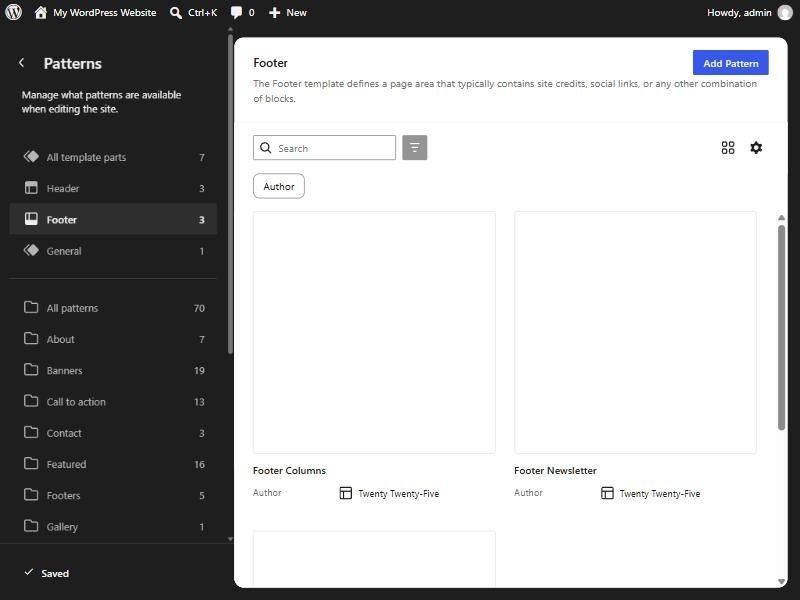
Watch for two look-alikes in that list. Footer under template parts is your site’s real footer. Footers further down is a category of ready-made designs you can insert, and editing those doesn’t change your site.
On my test site, the footer opened with “Designed with WordPress” at the bottom right. I replaced it with a copyright line, saved, and it showed on the live site straight away. The sidebar’s Design panel also offers the theme’s other footer layouts if you’d rather swap the whole thing.
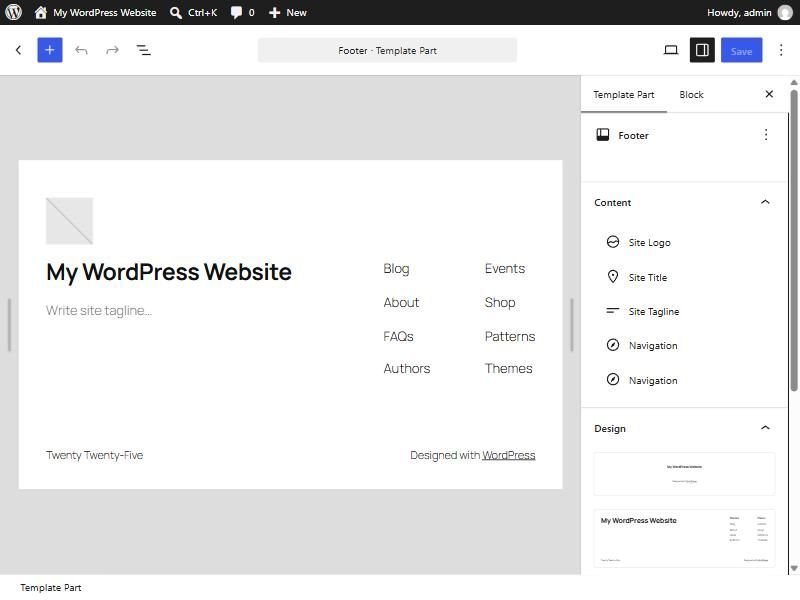
To undo it, open the same Footer and choose Reset from the ⋮ menu next to its name in the sidebar. WordPress only offers Reset once you’ve changed a footer that came with the theme. On my test site, resetting brought the original credit back.
Your changes are saved in the database, not in the theme’s files, so a theme update won’t undo them.
Classic themes: widgets for content, a child theme for the credit
Classic themes split the footer in two. The area above the credit line is usually a widget area you can edit freely. The credit line itself is usually written into the theme’s footer.php file.
Open the footer widget area
Go to Appearance → Widgets and expand the area called Footer. Twenty Twenty-One fills it with Search, Recent Posts, Recent Comments, Archives and Categories by default.
Add or remove blocks
Delete the widgets you don’t want and add your own, such as a paragraph with your address and phone number.
Click Update
Your changes go live when you click Update.
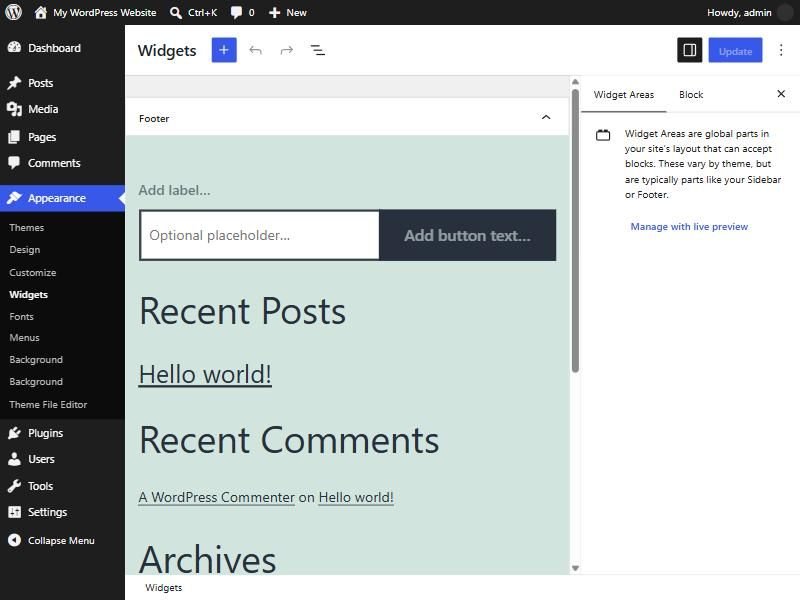
On my test site, the paragraph I added appeared in the footer straight away. The credit underneath didn’t change, because it isn’t a widget:
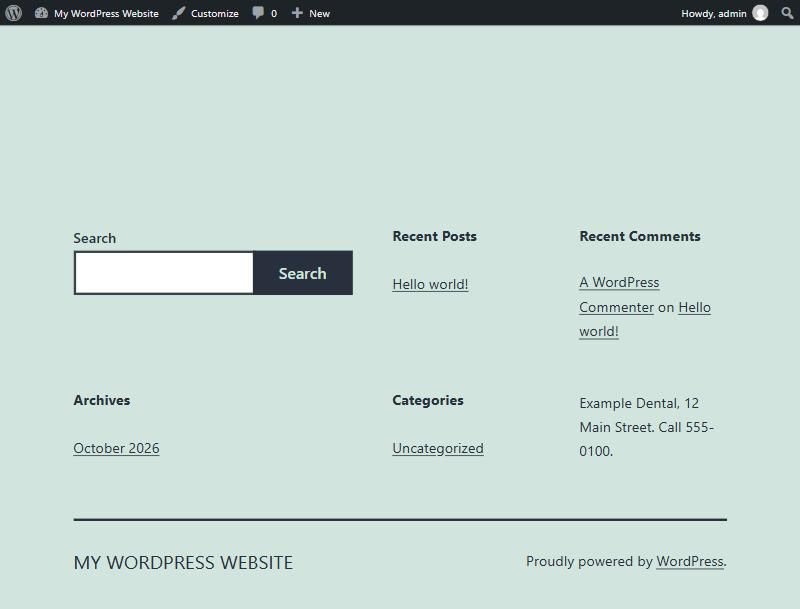
Changing “Proudly powered by WordPress” in a classic theme
There’s no setting for it in Twenty Twenty-One, either in Customize or in Widgets. You could edit footer.php directly, but the next theme update replaces that file and your change disappears.
The update-safe way is a child theme: a small theme that borrows everything from the original except the files you override. On my test site I made one with two files:
style.css, whose header names the parent theme withTemplate: twentytwentyone- a copy of the parent’s
footer.php, with the “Proudly powered by” lines replaced by a copyright line
After activating the child theme, the new credit showed on the live site and the footer widgets stayed in place. If you’re not comfortable editing theme files, this is a small job for a developer.
Page builders: edit it in the builder
If your footer was built with a page builder’s theme builder, WordPress’s own settings won’t change it. Elementor’s help center puts it under Elementor → Theme Builder: click the Footer card, then Edit, change it in the Elementor editor and click Publish. I haven’t tested this on my test site, and other builders have their own equivalent.
A quick way to tell: if you changed the footer in Appearance and nothing happened on the site, a builder is probably drawing it.
Before you change it
Your footer appears on every page, so it’s worth getting right once. Keep your business name, address and phone number the same as on your Google Business Profile, and keep footer links to the pages people actually need. My guide to SEO-friendly web design covers what belongs there. If you’d rather have it done, footer and theme changes are part of my WordPress development work.
