

How to find WordPress version depends on whether you can log in. I checked every common method on a test site running WordPress 7.1.3, logged in and logged out, and one of the methods older guides recommend no longer works.
If you can log in
1. The bottom right of any dashboard screen. WordPress prints the version in the footer of every admin page. On my test site it read “Version 7.1.3”.
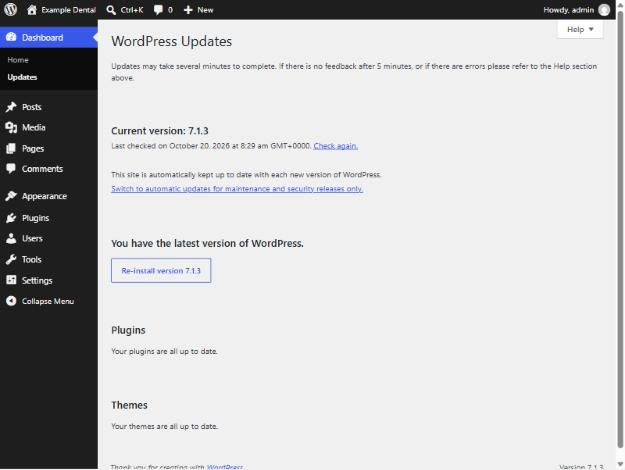
2. Dashboard → Updates. This is the most useful place, because it also tells you whether you’re behind. It shows Current version, and either “You have the latest version of WordPress” or the update waiting to be installed. Plugin and theme updates are listed underneath.
3. The At a Glance box on the Dashboard. It ends with a line like “WordPress 7.1.3 running Twenty Twenty-Five theme”, which gives you the theme too.
If you can’t log in
4. The files. Open your site’s files with your host’s file manager or FTP and go to wp-includes/version.php. Near the top is a line like:
$wp_version = '7.1.3';This works even when the dashboard is down, for example when you’re dealing with a WordPress white screen.
5. The page source or RSS feed, no login needed. I logged out and checked my test site as a visitor would. Two places showed the exact version:
- The page source. Open your home page, press Ctrl+U (Cmd+Option+U on a Mac) and search for
generator. My test site showedWordPress 7.1.3. - The RSS feed. Add
/feed/to your domain. Near the top is ageneratorline ending in?v=7.1.3.
Some sites hide these with a security or performance plugin, so a missing generator line doesn’t mean the site isn’t WordPress.
Finding your PHP, theme and plugin versions too
If you’re checking the version because a developer, host or plugin support team asked, they usually want the PHP version and your plugin versions as well. All of it is in one place.
Go to Tools → Site Health and open the Info tab. On my test site:
- the WordPress section listed the version, 7.1.3
- the Server section listed the PHP version, 8.3.33
- Active Theme and Active Plugins listed each one with its version number
The Info tab has a Copy site info to clipboard button, which copies the whole report as text you can paste into an email or support ticket. Check what you’re sending before you paste it publicly, because the report includes server paths and settings.
For plugins alone, Plugins → Installed Plugins shows the version under each plugin’s description, such as “Version 4.7” for Yoast Duplicate Post on my test site.
The method that no longer works: readme.html
Many guides say to open yourdomain.com/readme.html. On WordPress 7.1.3 that page still exists, but it doesn’t show the installed version any more. It lists requirements instead: PHP 7.4 or greater, with PHP 8.3 recommended. If an old guide sends you there, use Dashboard → Updates instead.
Should you hide your version number?
The version shows publicly by default, and hiding it doesn’t make an outdated site safe: the weakness in an old version is still there whether the number shows or not. What protects a site is running the current version, with plugins and themes updated too. If your site is several versions behind and you’re nervous about updating it, that’s a job I handle as part of my WordPress development work. For a site that’s current but slow, see how to speed up a WordPress site.
