

How to edit a site in WordPress is a different question when someone else built it. You don’t know which parts are pages, which are theme settings or what the developer locked down. I set up a test site on WordPress 7.1.3 and went through it the way a business owner would, including with a limited account, to show where everything lives and how to undo mistakes.
1. Get in with the right account
Your login page is your domain followed by /wp-admin, for example example.com/wp-admin. If that page doesn’t load or keeps sending you back to the login form, my guide to wp-admin not working covers the usual causes.
Then check which role your account has, under Users → Profile or in the menu you see. It decides what you can change. I gave a test account the Editor role and compared it with an Administrator:
| Menu item | Editor | Administrator |
|---|---|---|
| Posts, Pages, Media, Comments | Yes | Yes |
| Appearance (header, footer, menus, theme) | No | Yes |
| Plugins | No | Yes |
| Users | No | Yes |
| Settings | No | Yes |
The Editor account got an error page on every screen marked No. So if you can edit your pages but can’t find where to change the menu or footer, it’s your role, not you. Ask the person who built the site for an Administrator account. You own the site, so you should have one.
2. Find where each thing lives
| You want to change | Where it is |
|---|---|
| Text and images on a page | Pages → All Pages, then click the page |
| Blog articles | Posts |
| Business name shown in the header | Settings → General → Site Title |
| Logo, header or menu | Appearance: see how to edit the header |
| Footer and copyright line | Appearance: see how to edit the footer |
| Images and PDFs | Media |
If a page opens in a different editor with its own panels and an “Edit with” button, the site uses a page builder, and that page’s content is edited there.
3. Edit a page
Open the page
Go to Pages → All Pages and click the page’s title.
Make the change
Click the text or image you want to change and edit it directly. The sidebar on the right shows the page’s settings, like its address and featured image.
Save
Click Save at the top right. On a page that’s already published, that updates the live page straight away. On a draft, the button says Publish instead.
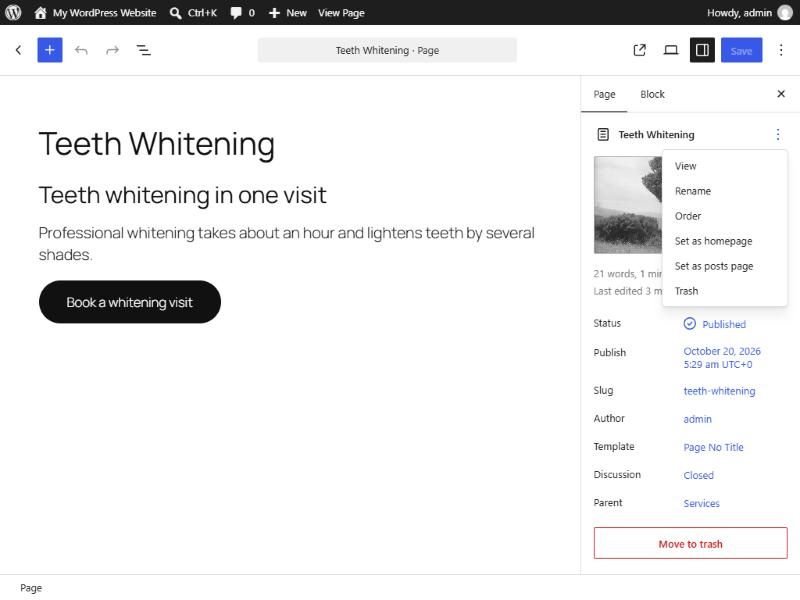
4. Undo a mistake with revisions
WordPress keeps a copy every time a page is saved. Open the page, find Revisions in the sidebar, and you get a side-by-side comparison of what changed:
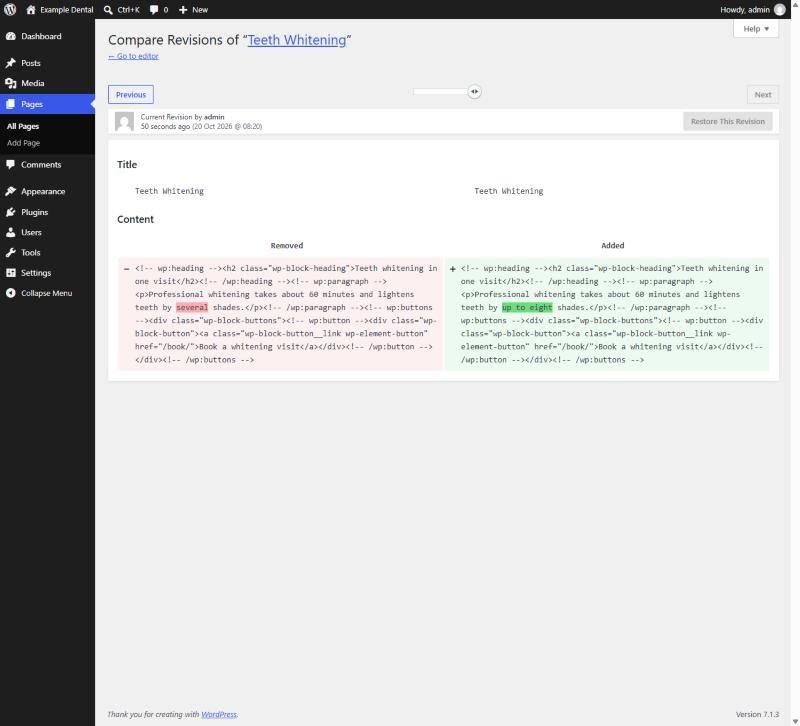
Drag the slider to the version you want and click Restore This Revision. On my test site, restoring put the old wording back on the live page. Restoring also saved a new revision, so if you restore the wrong one, you can restore again.
If someone else is editing at the same time
WordPress lets only one person edit a page at a time. If a colleague or your developer has it open, you’ll see this:
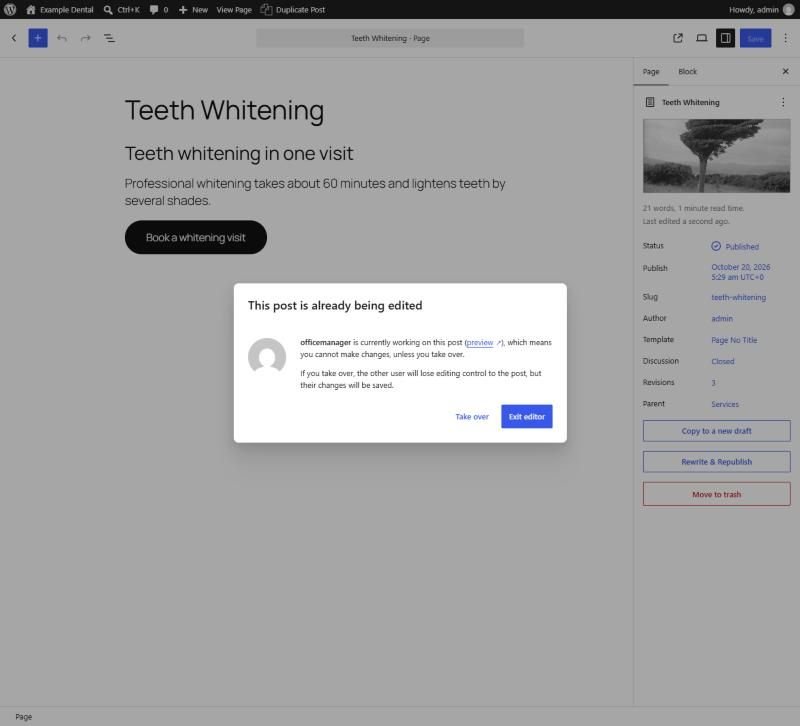
Take over gives you control, but the other person loses theirs, so check with them first. On my test site the lock also disabled Restore This Revision, because WordPress won’t restore a page someone else is editing. If Restore is greyed out, that’s the likely reason.
What to leave alone
Page text, images, menus, the header and the footer are all safe to change yourself. Be more careful with switching themes, deleting plugins and anything under Appearance → Theme File Editor, because those can change how the whole site works. Take a backup first, or ask a developer. If the site was handed to you half-finished or you’d rather not touch it, that’s what my WordPress development work covers. Planning bigger changes? See SEO-friendly web design.
