

How to install a theme in WordPress takes a few clicks. Switching to it is the part that can surprise you, because your header, menus and widgets belong to the old theme. I installed, previewed and switched themes on a test site running WordPress 7.1.3, then switched back, to show exactly what changes.
Install a theme from the directory
Open Add Theme
Go to Appearance → Themes and click Add Theme.
Find a theme
Browse Popular or Latest, use Block Themes to see only block themes, or search by name. Feature Filter narrows the list by layout and features.
Install it
Hover over the theme and click Install. It’s added to your Themes screen but not switched on.
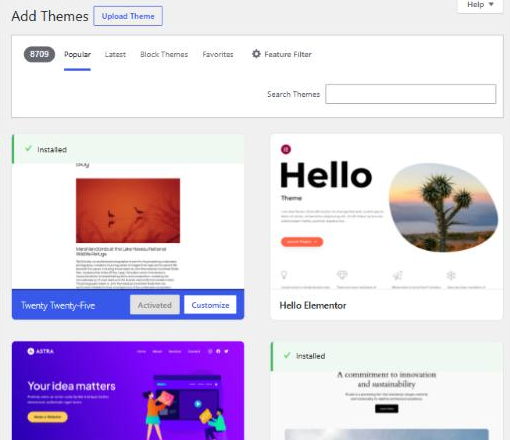
For a premium theme you’ve bought, click Upload Theme at the top, choose the .zip file, and click Install Now. Upload the zip as it is, without unzipping it.
Preview it before you activate
Installing doesn’t change your live site. Activating does. In between, use Live Preview: hover over the installed theme in Appearance → Themes and click Live Preview.
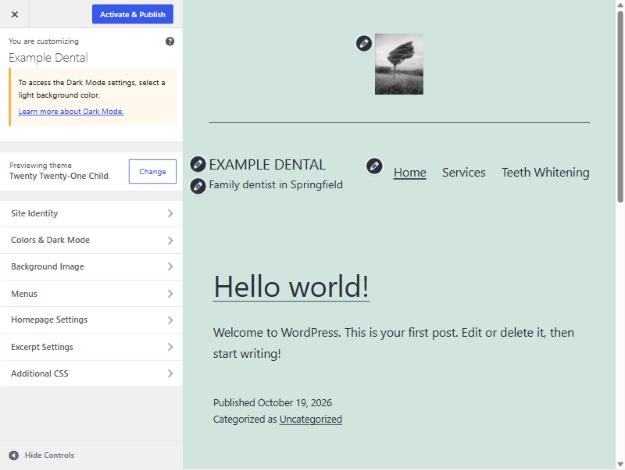
While I had the preview open, I loaded my test site logged out, as a visitor would, and it still showed the original theme. Nothing goes live until you click Activate & Publish, or Activate on the Themes screen.
What changes when you switch, and what doesn’t
I switched my test site between a classic theme and a block theme, with the header, menu and footer set up in each.
Stays the same: your pages, posts, images, and site-wide settings like the site title.
May change:
- Logo. The image is kept, but the new theme’s header may have nowhere to show it.
- Menus. When I switched to the block theme, my menu was replaced by a list of every page until I chose the menu again.
- Widgets and footer. Classic theme widgets don’t appear in a block theme’s footer.
- Theme settings. Colors, layout options and anything set in the old theme’s Customizer or Editor.
The reassuring part: none of it was deleted. When I switched back to the classic theme, its footer widget, menu and custom credit line were all there again. Switching back to the block theme restored its edited header too. WordPress keeps each theme’s settings separately.
Block theme or classic theme?
The directory’s Block Themes tab matters more than it looks, because the two kinds are edited in different places. With the block theme on my test site, the header, footer, fonts and colors were all changed in Appearance → Editor, using the same blocks as pages. With the classic theme, they were split between Customize, Widgets and Menus, and the footer credit needed a child theme. If you’ll be making changes yourself, a block theme keeps everything in one place. If your site depends on a page builder or plugins built for classic themes, check they support a block theme before you switch.
Before you switch on a live site
- Take a backup, so you can roll back completely if something goes wrong.
- Note what the old theme shows: logo, menus, footer content and any widgets, so you can set them up again.
- Check the theme’s details: recent updates and compatibility with your WordPress version.
- Check your key pages on a phone in Live Preview, including your contact page and any forms.
- Keep one default WordPress theme installed. If a theme breaks, WordPress falls back to a default theme, as I found in my white screen of death tests.
After switching, set up the header and footer again. My guides to editing the header and editing the footer cover both theme types.
A theme change is a good moment to rethink structure, not just looks; see SEO-friendly web design. If you’d rather have the switch done without downtime, that’s part of my WordPress development work.
